
Business processes / Business Process
Design a business process
Build a process draft with steps, assignments, inputs, branches, and waits, then save it for publication.
Select a screenshot to open the original image in a new tab. Organizations, names and records in the examples are Demo data; use the corresponding information for your own work.
Before you start
Prepare the work rules, required inputs, and responsible people. The in-product guide requires process-definition read and create permissions. Tenant-wide catalog authoring has separate authority; select only the scope the editor allows.
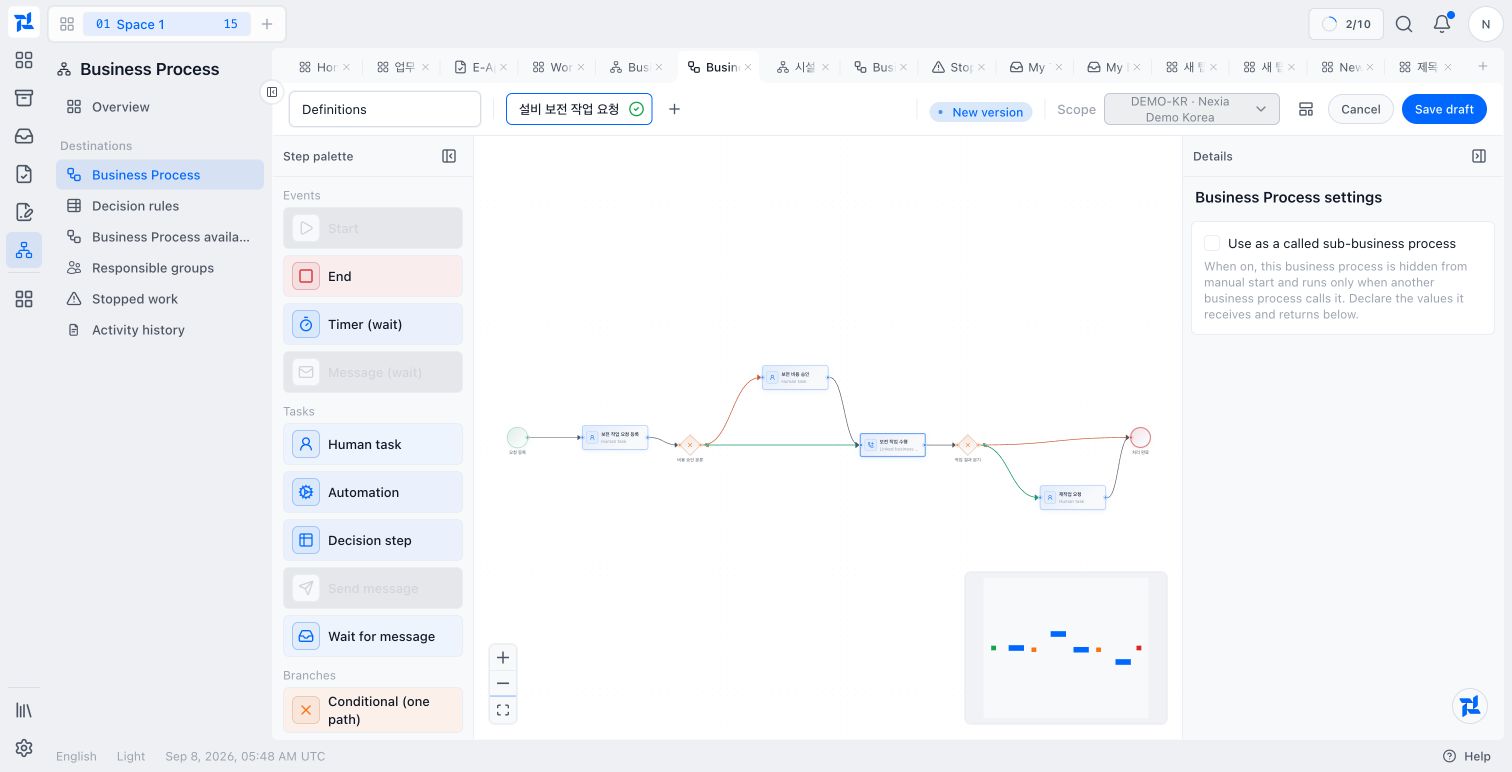
Read the three editor regions
Choose elements from the left palette, connect them on the central canvas, and configure the selected element in the right settings panel. Alternate between reviewing the complete path and inspecting individual properties. Also check the definition name and scope at the top before editing a draft.
Learn the editor with a small workflow
BPMN represents work as shapes connected in order. A shape is a step or node. A definition is the saved design; an instance is one actual run of that design.
Start with Start → Record inspection results → Complete. These captures show a new draft version opened from the Demo Meeting room inspection definition. A new definition can use the same three steps and settings.
- Select the working Legal Entity in the definition list. Choose Create business process for a new design, or Actions → New version on a published example.
- Name the process Meeting room inspection. Connect a Human task after the start, then connect an End. If using the prepared example, keep its existing connections.
- Select the human task and name it Record inspection results.
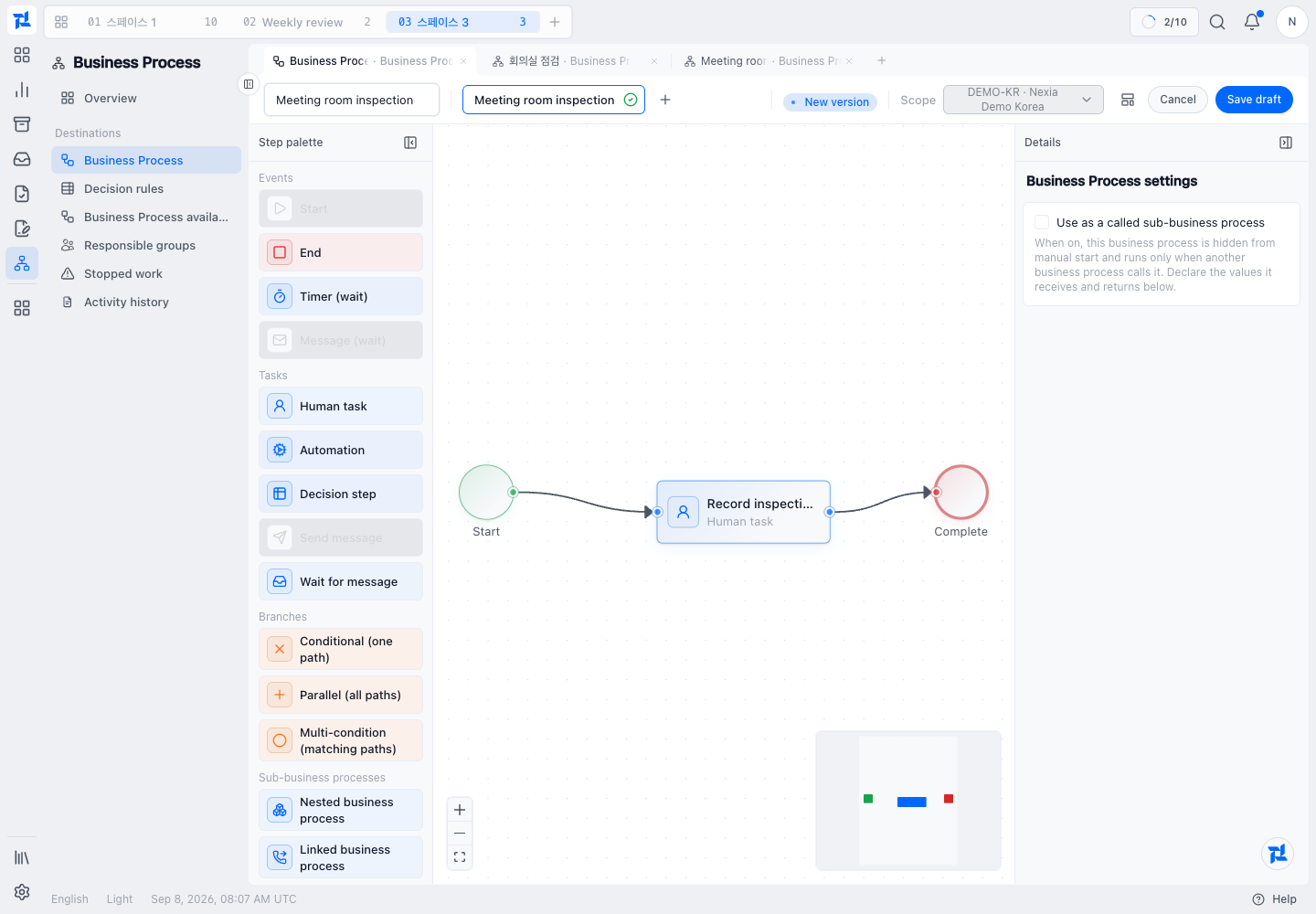
The left palette holds steps, the center shows their order, and the right panel configures the selected step. Check the complete start-to-end path first.
- In the assignee controls, choose the person who will do the inspection from the Legal Entity. The Demo uses Nexia Demo Administrator. Choose an active participant with permission to complete tasks in your own entity.
- Scroll down the settings panel to the input fields. Add the following fields.
| Field name | Type | Required | Example value when handling the task |
|---|---|---|---|
| Equipment | Text | Selected | Third-floor meeting room projector |
| Inspection note | Text | Selected | Display and connection cable checked |
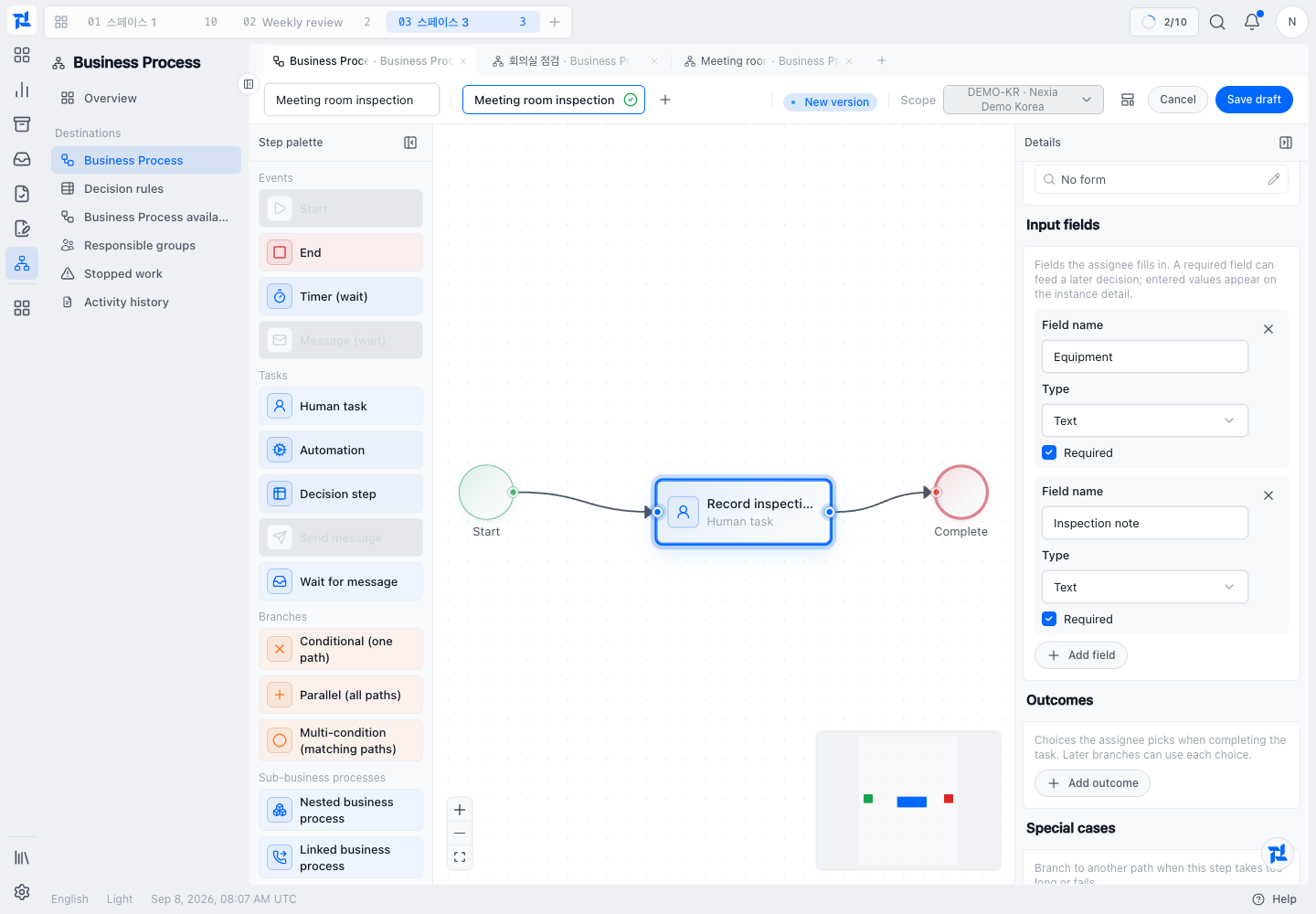
Configure field names, types and required status here. The person handling the assigned task supplies the actual inspection values later.
- Choose Save draft. If the list asks for a Legal Entity, select the same entity again.
- Reopen the Meeting room inspection draft and confirm the assignee and both fields. The list distinguishes the original published v1 from the saved draft v2.
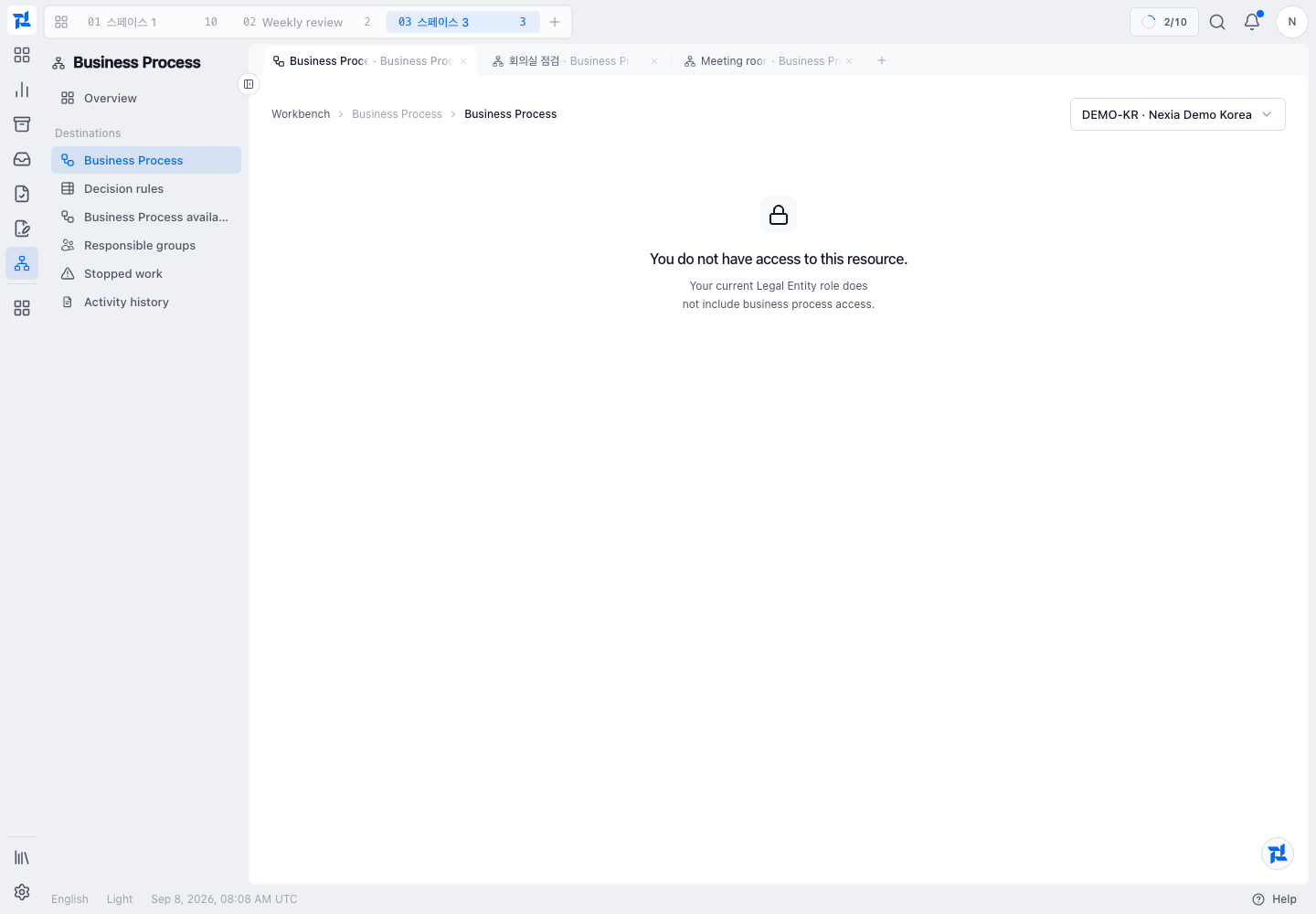
This shows draft persistence, not publication or execution of the draft.
Continue to branches and linked processes after learning this smaller flow. This example belongs to one Legal Entity. The shared-process deployment guide requires a published company-wide definition; the entity-owned example does not automatically appear in that catalog.
Example: design work with a human review
First sketch a workflow in which an assigned person reviews incoming work before it moves on. Identify the starting conditions, the input the person reads, the outcome they submit, and the next step for each outcome. This makes the canvas settings easier to plan. The illustration describes the design sequence; it is not an executable BPMN template.
Open process definitions
Open the Business Process definition library at /workbench/process/definitions and select the Legal Entity in the page header. If a new editor asks for the target again, select the Legal Entity that will own the definition. Find an existing definition if the work already has a design.
Start a definition
Choose Create business process to open the editor at /workbench/process/definitions/editor. Enter the identifying information and choose the permitted scope. Use an existing definition as a starting point only after reviewing its purpose.
Place BPMN steps
Use the palette to add supported start, task, gateway, wait, and end elements. Connect the steps in the intended order. Select a node to configure its properties; a visually complete diagram can still lack required behavior.
Configure assignment and inputs
For user tasks, select available assignment options and the input form when needed. For work actions or linked processes, use the available catalogs and map the required inputs. Do not assume that an unavailable app or missing assignment can be bypassed by typing a name.
Configure branches and waits
Set gateway conditions and a default path where appropriate. Configure the supported timer or message wait on the selected element. Refer only to values available before that step executes.
Review design errors
Read canvas validation messages and inspect the affected node or connection. Fix missing connections, unsupported elements, incomplete input mapping, or invalid conditions. Client feedback helps during editing; server validation determines whether publication is accepted.
Save the draft
Choose Save draft. Wait for confirmation, then reopen the definition to check that the intended graph and settings were saved. A saved draft is not yet available for new business runs.
Prepare a new version
- In the definition library, inspect the source version. A draft offers Edit; a published, deprecated, or retired version offers New version.
- Choose New version to keep the process identity and start its next draft. Use the separate clone action only when you intend to create another process.
- Save the revised draft and review it. Choose Publish in the definition actions when validation and authority permit it.
- Select the published version separately in deployments.
Review the design along the canvas
| Situation or review point | What to check and do |
|---|---|
| User task | Be able to explain who acts, what they read, and what they submit. |
| Branches and waits | Check that condition values exist beforehand and each wait has a defined release condition. |
| Draft and publication | Reopen the saved draft for review. Publication and deployment are separate later steps. |
Confirm completion
Confirm the saved version, scope, steps, and inputs in the definition library. Keep the draft state visible until the publication review is complete.
If something goes wrong
If catalogs are empty, check the selected scope, read access, and whether the referenced definition or app is available. Resolve the validation message at its source before attempting publication again.
Learn more
More guides for this capability
Nexia Cloud OS
Design a business process
Build a process draft with steps, assignments, inputs, branches, and waits, then save it for publication.