
Approval and signature / E-Approval
Review an assigned E-Approval
Find an assigned approval, review its evidence and current stage, and record a permitted decision.
Select a screenshot to open the original image in a new tab. Organizations, names and records in the examples are Demo data; use the corresponding information for your own work.
Before you start
Sign in and choose the Legal Entity for the case. You need permission to read approval cases and act on them. The in-product guide requires both. Your current assignment and the case state also determine which decisions you can make.
Example: distinguish your review from the final decision
Continue the meeting-minutes example from Write an E-Approval. Nexia Demo Administrator submitted it and Nexia Demo User reviews it. There is one approver in this example. With several stages, completing your review may leave the case waiting on the next person.
Find approval work in the unified inbox
Choose My Tasks in the App Launcher (/workbench/tasks). Find the waiting item and, when available, filter the source to E-Approval. Open its title to review the case; Act opens its available handling flow.
Review the document and supporting evidence
Read the document and attachments. Confirm the title Weekly operations review minutes · Guide example and Waiting for your approval. The example asks for approval of an inspection plan and its deadline. Resolve missing evidence before deciding.
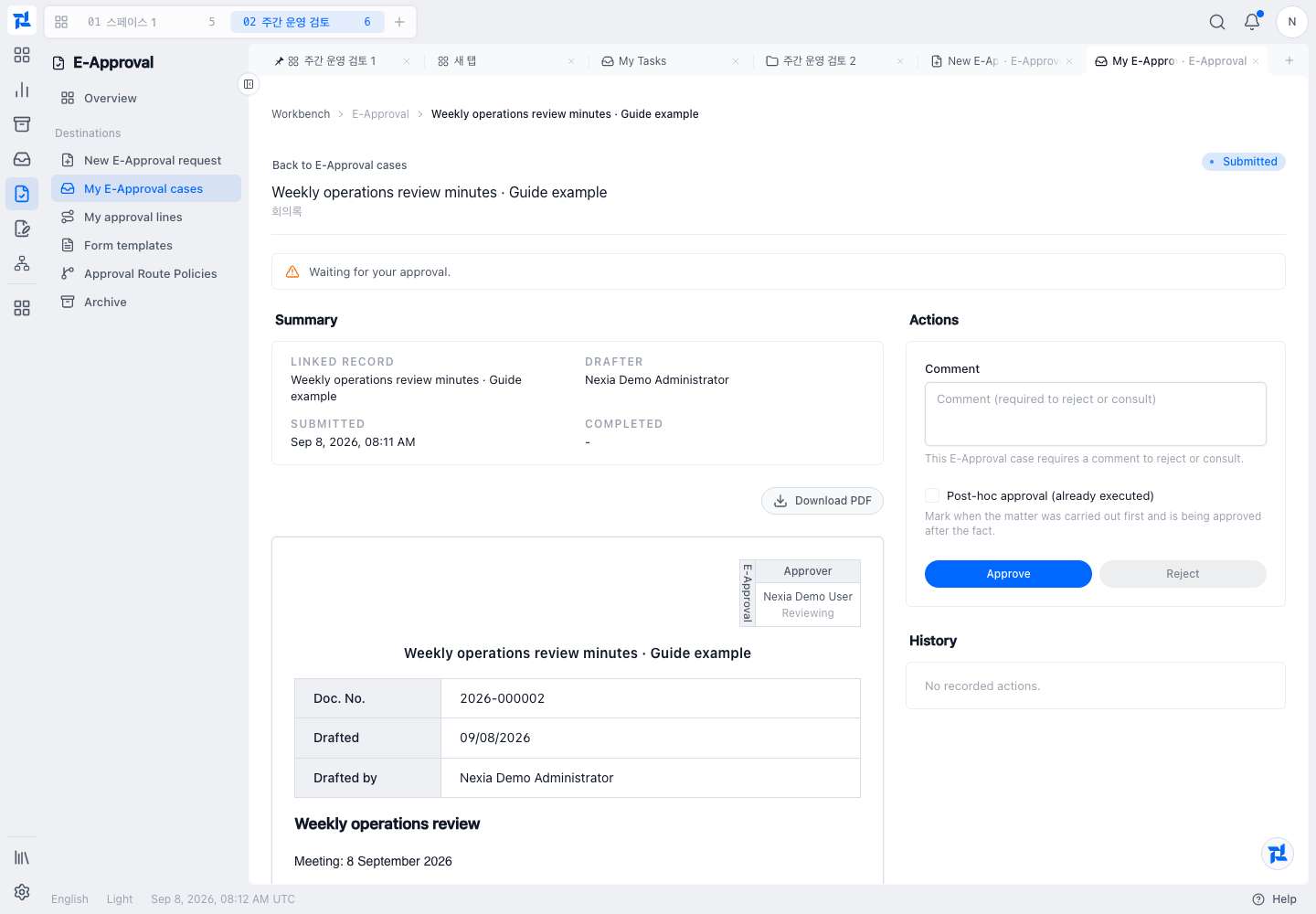
The right Actions panel is available to this reviewer. The drafter’s submitted view has different controls.
Check the approval line and current stage
Inspect the route, responsible actors, current stage, and previous comments. Confirm that the case is waiting for your action. Participation in an earlier stage does not confer authority over the current stage.
Choose a permitted decision
Use the actions offered on this case. Approval and rejection are distinct from consultation and objection; the available actions depend on the stage and your authority. Do not assume that every form offers a separate request-for-changes action.
Record your comment and complete the action
For this example, enter I reviewed the inspection plan and the follow-up deadline. in Comment, then choose Approve. Use the decision that matches the real document; do not copy an approval without reviewing it. Wait for the result before acting again.
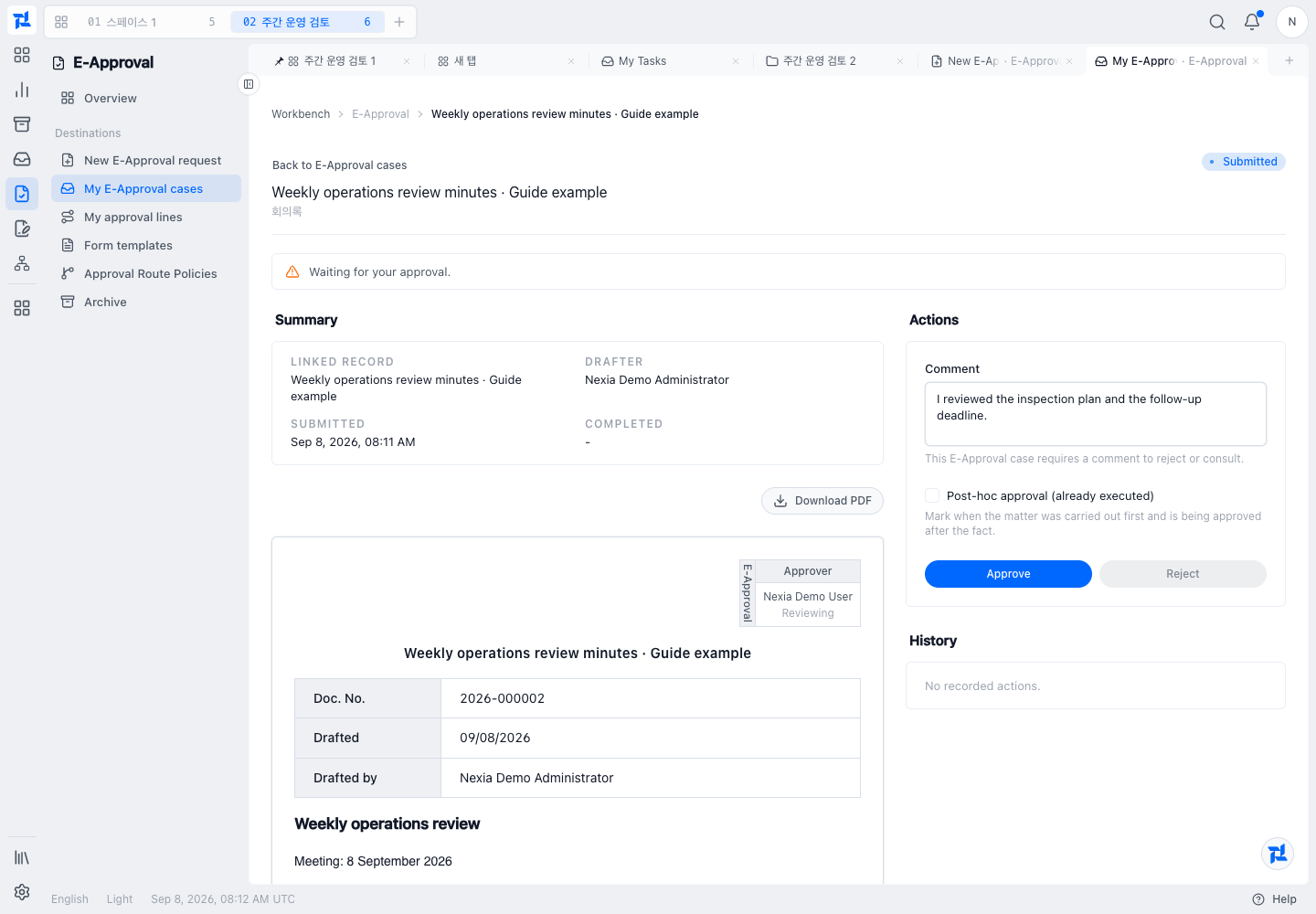
Check both the opinion and selected decision before submission.
Review status and history
Read History for your name, Approved, the comment and time. This one-stage example is now Approved overall. In a multi-stage case, inspect who is next instead of assuming the whole case is finished.
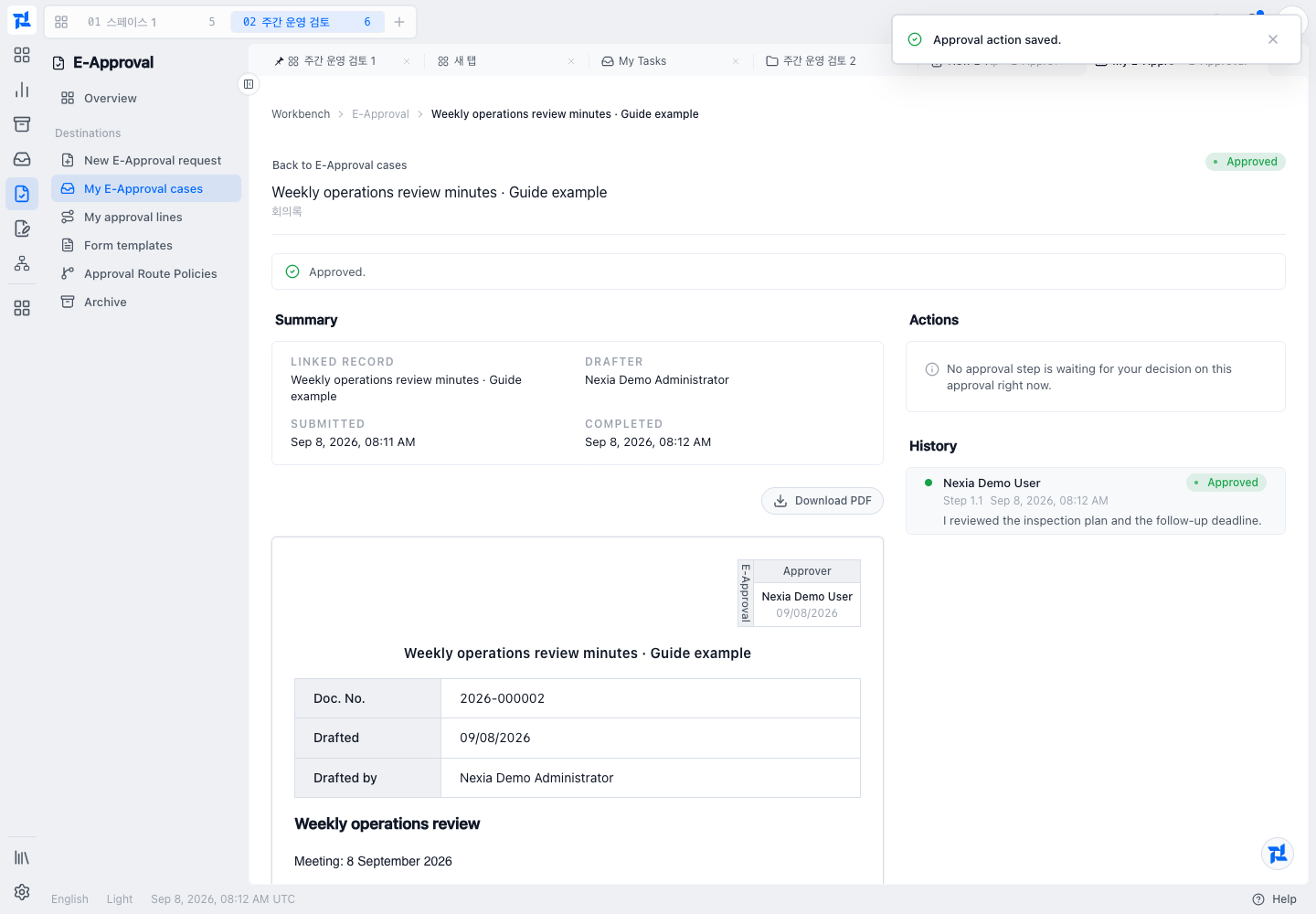
The same title and comment connect this result to the request and review steps above.
Confirm completion
Confirm that your action appears in the case history and the pending task no longer requires the same action from you. Inspect the final case state separately if the business outcome depends on full approval.
If something goes wrong
If the task is absent, check Legal Entity and read access. If no action is offered, check current assignment and stage. If the server rejects an action after another person has acted, reload the case and review its current state.
Learn more
More guides for this capability
Nexia Cloud OS
Review an assigned E-Approval
Find an assigned approval, review its evidence and current stage, and record a permitted decision.