
Approval and signature / E-Signature
Send and complete E-Signature requests
Start from a published form, assign signers, complete recipient verification and signing, track progress, review the signed document, and send requests in bulk.
E-Signature connects a published PDF form to named signers and retains the verification, consent, signing, and completed-document record. This guide follows the full journey: a single request, the recipient experience, requester tracking, the signed PDF, and bulk delivery.
Select a screenshot to open the original image in a new tab. Organizations, names and records in the examples are Demo data; use the corresponding information for your own work.
Before you start
- Sign in to Nexia and select the Legal Entity that owns the request.
- Sending a request requires authority to prepare a document and create a signature request. Selecting an internal person also requires directory read access.
- Request metadata and the protected completed PDF have separate access controls.
- Bulk delivery requires the bulk-request authority in addition to the permissions used for a single request.
- Confirm that you may use an external recipient's name and email for this business purpose.
- If the business form does not exist yet, create and publish the E-Signature form first.
Seeing a request does not by itself authorize access to its completed PDF or protected evidence.
Who uses each screen?
| Person | Work in this guide | Handoff |
|---|---|---|
| Requester | Select the form, signers and verification; send the request | Invitation reaches the recipient after creation |
| Recipient | Verify identity, review, consent and sign | Requester checks progress after signature confirmation |
| Requester | Track all signers and inspect the completed PDF | Finish when required signing and document preparation are complete |
The recipient section uses the signer’s screen. It does not instruct the requester to sign as an external recipient from the requester’s own account.
Start from a published form
Open the published form supplied for the business task. Check its name, scope, version, and signing flow. Choose Request Signature for one document or Bulk request when each recipient group needs an independent request.
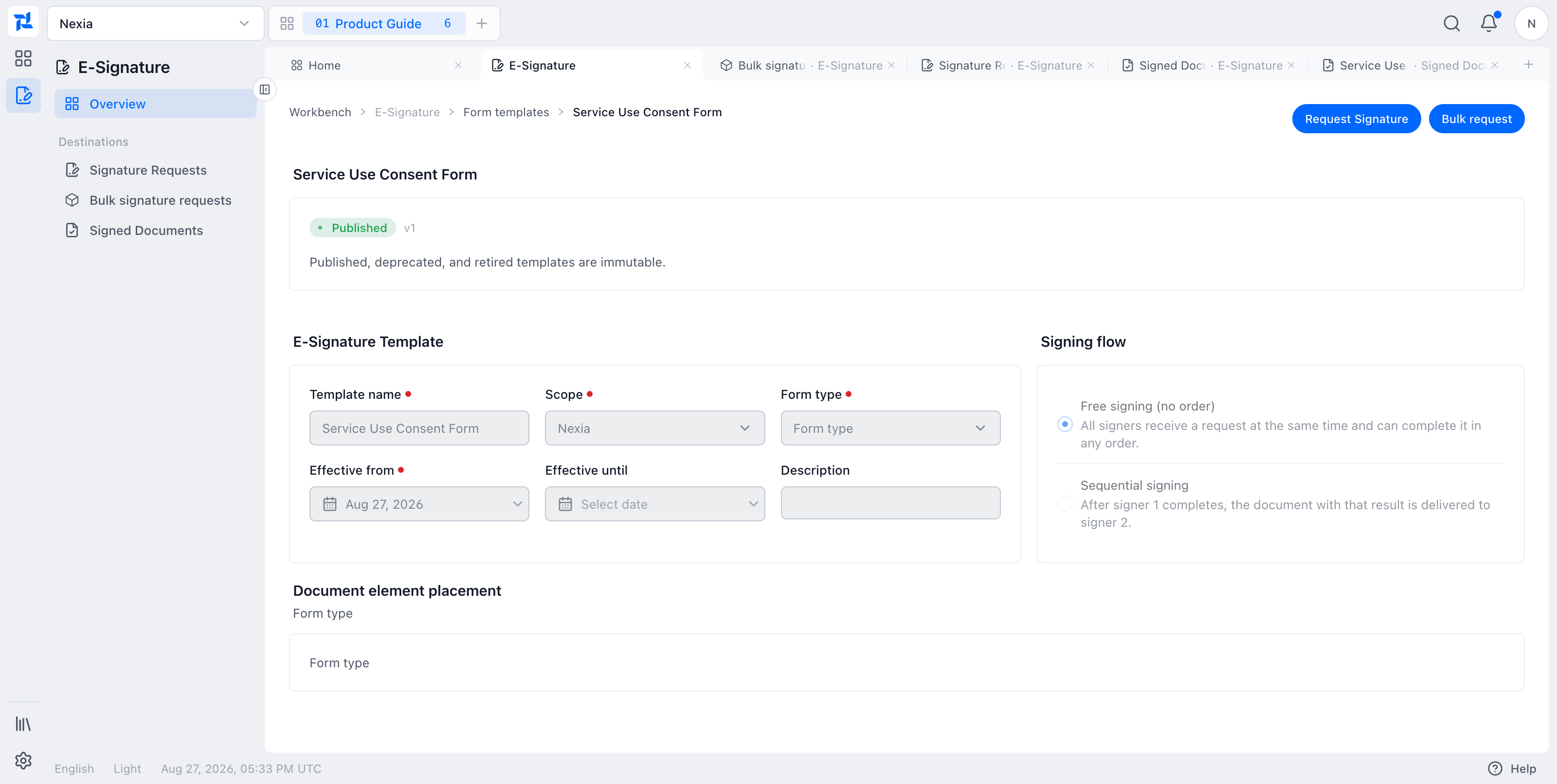
The published Service Use Consent Form supports both entry points.
Published, deprecated, and retired forms are immutable. Confirm that the PDF and its signing fields still match the work before you continue.
Assign signers and verification
Each signer slot accepts either a directory person or a one-time external recipient.
- Set the request validity in days.
- Choose Directory Person or External Recipient.
- For an external recipient, enter the person's name and email address.
- Select the available identity checks, such as a request password or Email Verification Code.
- For a multi-signer form, confirm the signing flow and signer order.
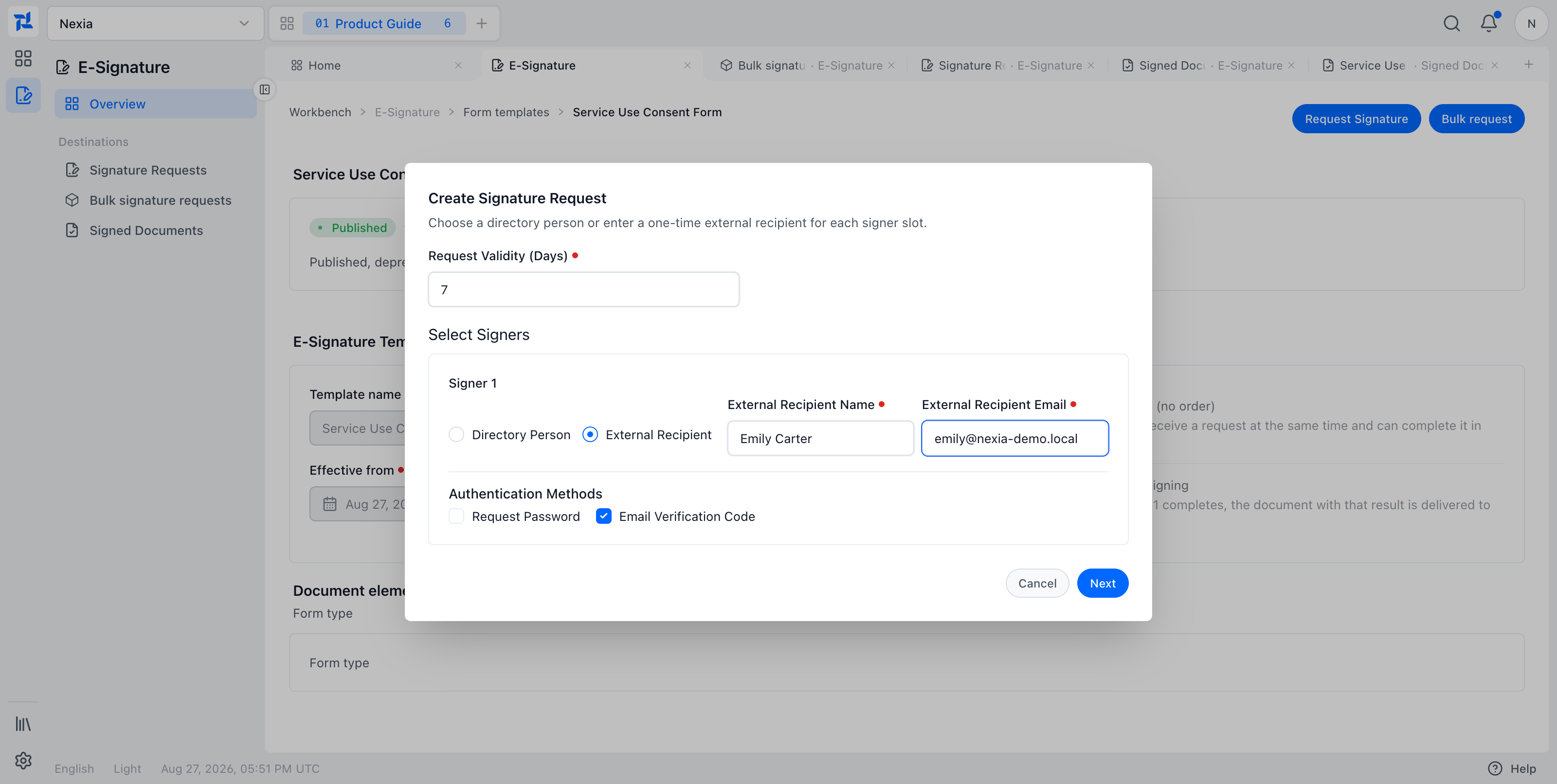
This request uses one external signer and an email one-time code.
With Free signing (no order), all signers receive an invitation together and may finish in any order. Sequential signing delivers the document to signer 2 only after signer 1's result has been applied. The order cannot be changed after the request starts.
Review the exact PDF
Choose Next to prepare the document that will be sent. Review the pages and signer assignments, then choose Request Signature.
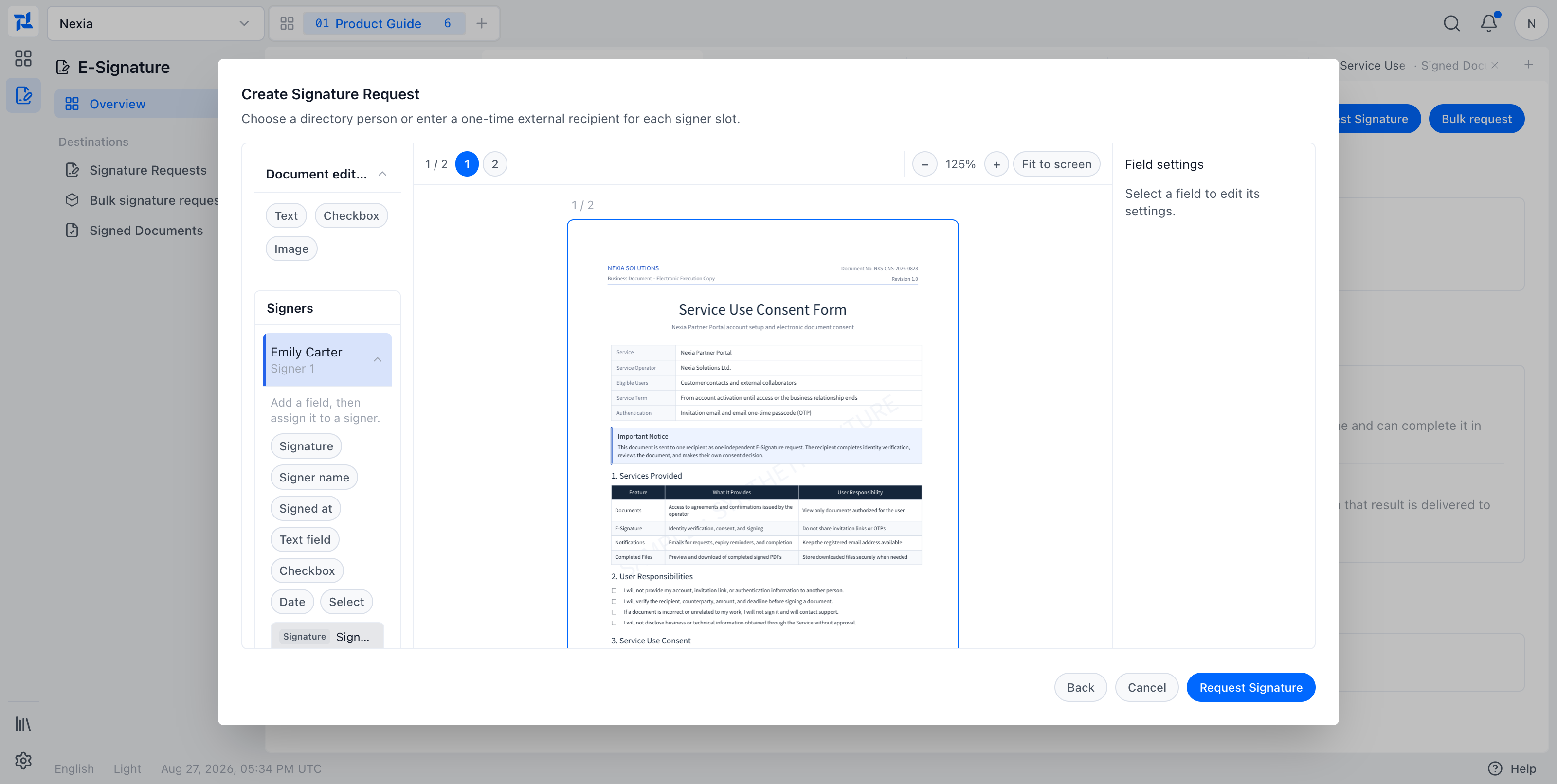
Before sending, verify:
- the document title and page count;
- the signer assigned to each name, signature, and signed-at field;
- the position of every required signature field;
- any request-specific text or fields permitted by the form; and
- the recipient address and expiration window.
After creation, Nexia sends the invitation and adds the request to Signature Requests.
Verify the recipient
An internal signer can open Received Signature Requests in E-Signature navigation. Ready to sign requests open in a new browser tab by default; Open in this tab uses the same signing page. Waiting for my turn identifies sequential requests that cannot be opened yet. External recipients and older email-only requests remain available only from their invitation email.
The recipient can also open the secure link from the newest invitation. Whether they enter from email or Received Signature Requests, they must complete every identity check configured for that request. Being signed in does not skip an email verification code or request password. For email verification, choose Send code, enter the one-time code, and choose Verify.
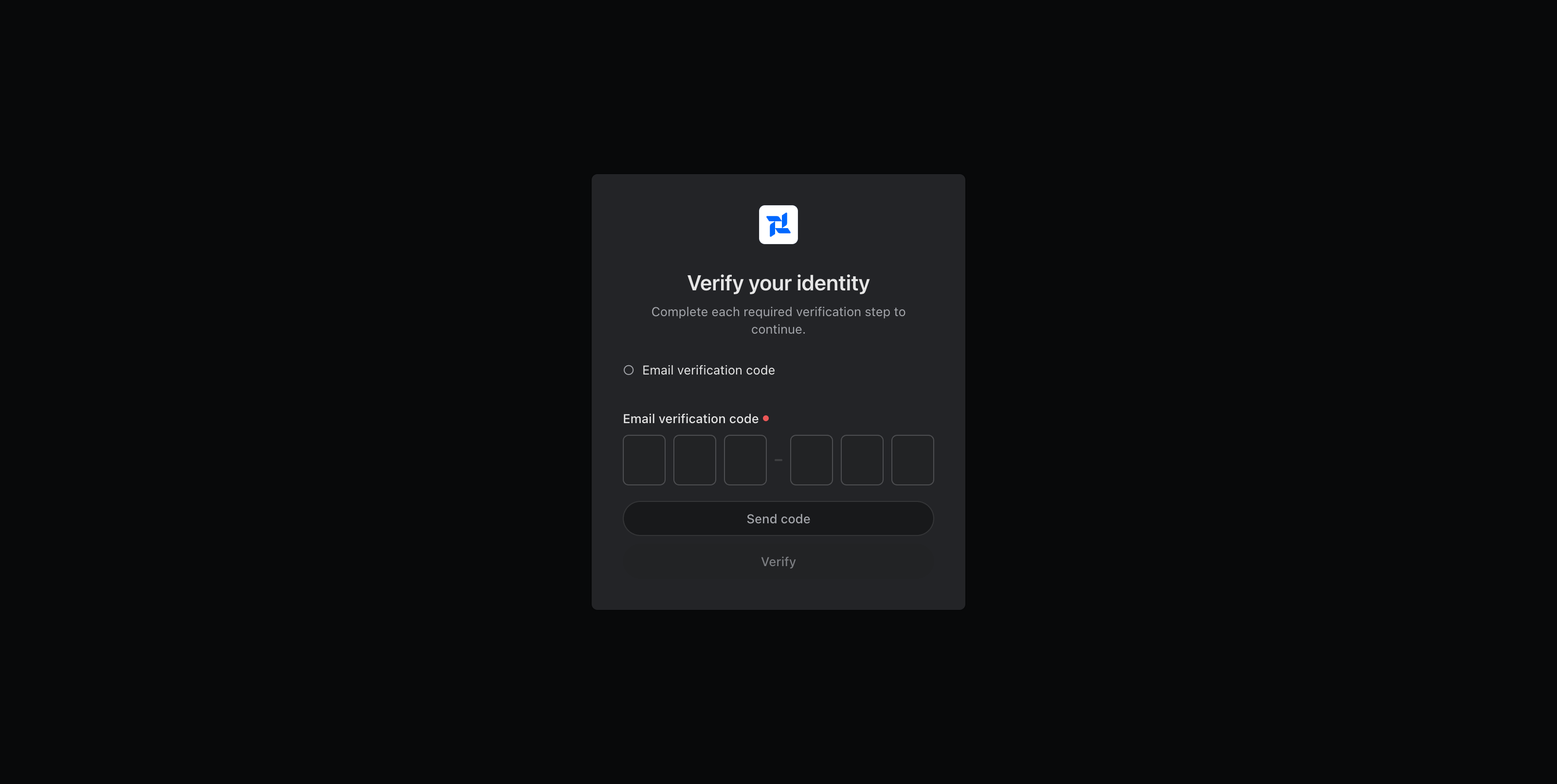
Codes are limited by time and attempt count. Requesting a new code invalidates the previous one. If an invitation has expired or been replaced, the recipient should ask the requester for the newest invitation.
Review, consent, and sign
Once verified, the recipient:
- reviews the PDF and the fields assigned to them;
- reads and accepts the E-Signature consent;
- enters a signature using an available method;
- confirms that no required signature fields remain blank;
- chooses Complete signature; and
- confirms the irreversible completion action.
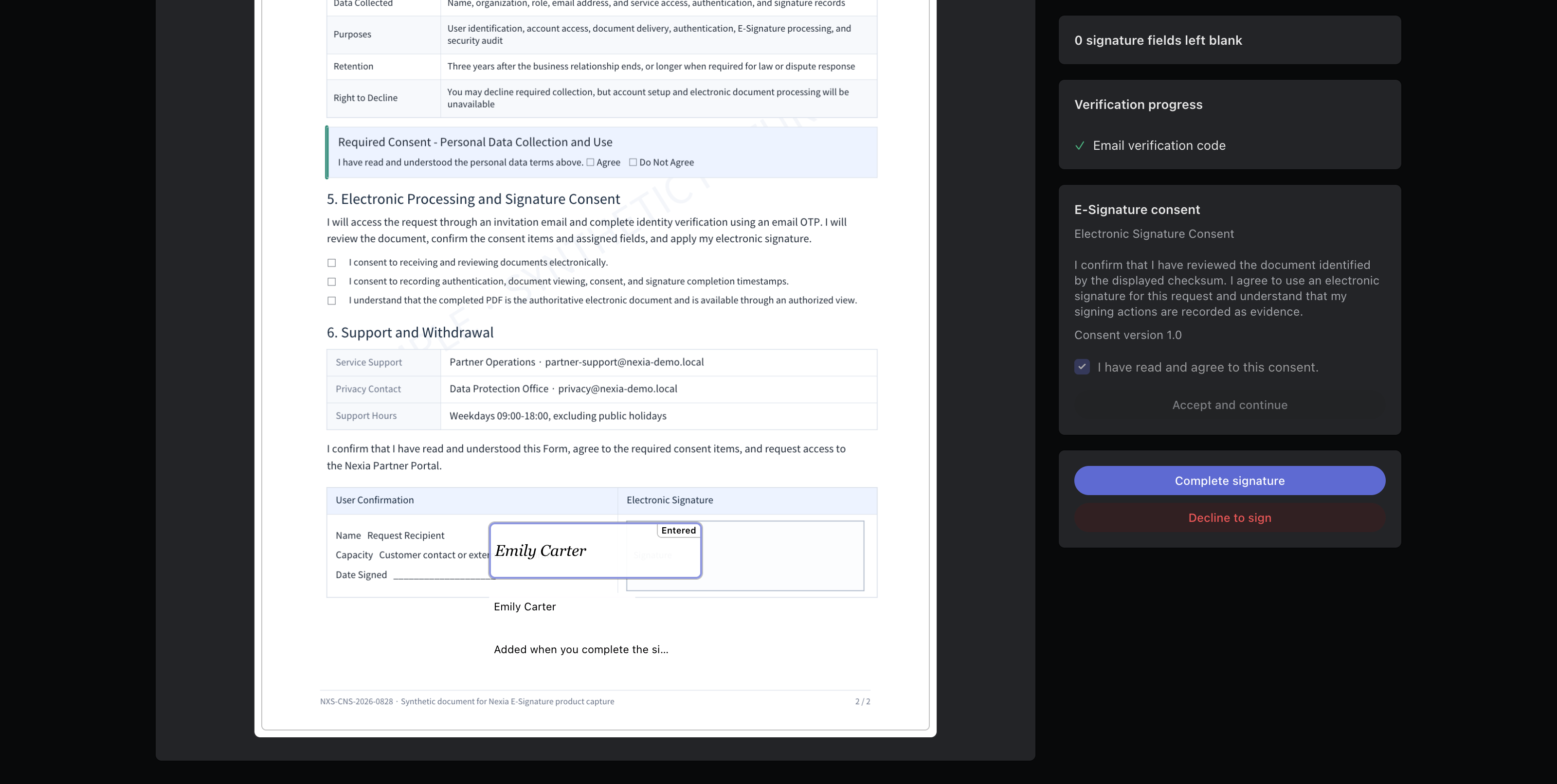
A recipient can edit only fields assigned to them. Nexia retains the signing record and makes the completed document available when finalization is complete.
Track request and signer progress
Open Signature Requests from E-Signature navigation. Read the document, signing flow, signers, status, signer progress, requested time, and expiration time together.
The request detail separates these milestones for each signer:
- delivery requested;
- invitation sent;
- authenticated;
- document viewed;
- consent accepted; and
- signing completed.
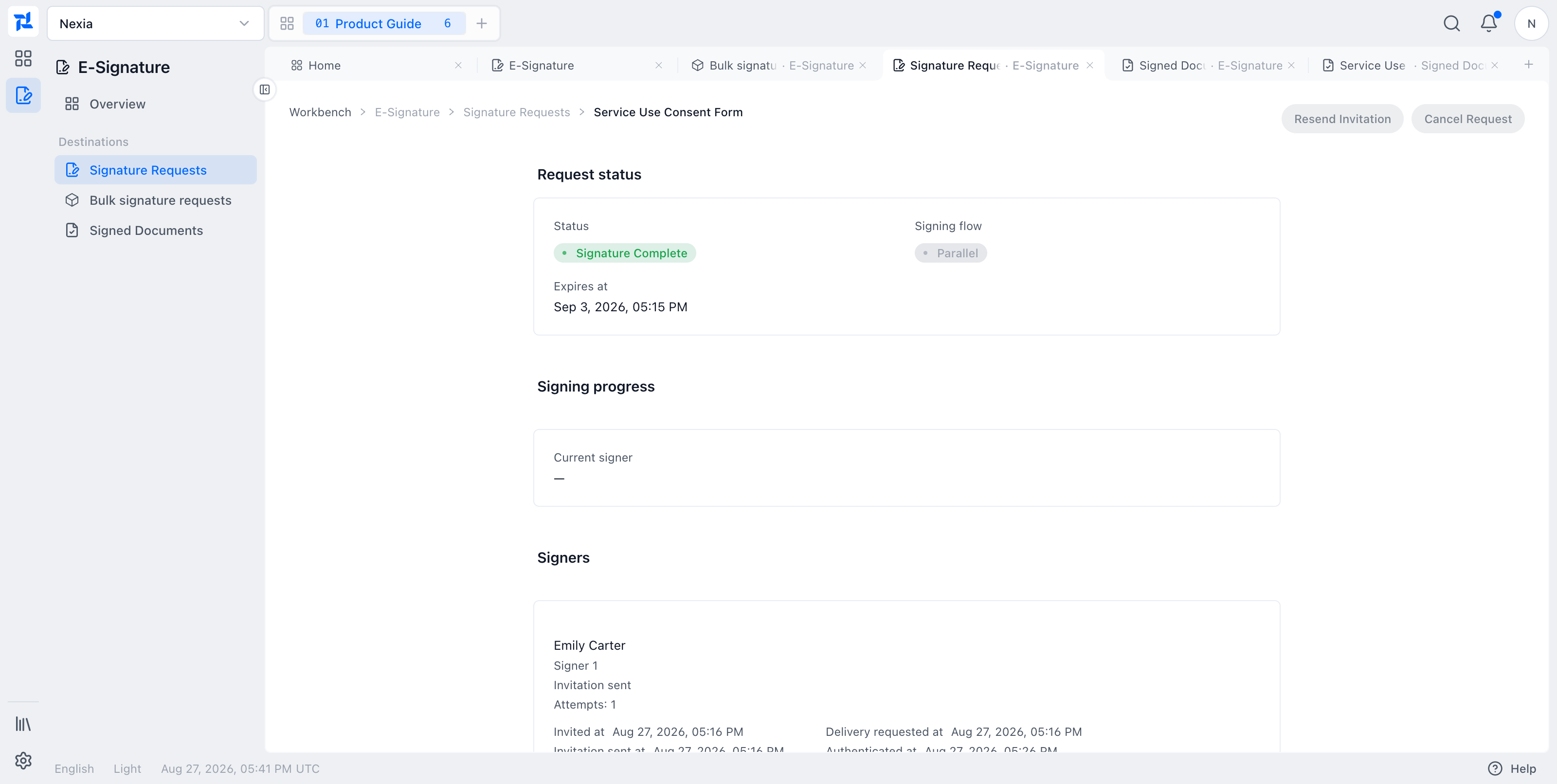
For a sequential request, also check Current signer and the completed count. Only the signer whose turn is active can receive a new invitation; resend is unavailable for a signer who already completed. Resend and cancellation are unavailable after the request reaches a terminal state.
Review the signed PDF and timeline
Choose Signed Documents in E-Signature navigation.
- Search by document or signer.
- Open the result and verify its signers, requested time, and signed time.
- Inspect the final PDF with the applied signature.
- Choose Download signed document when authorized.
- Use View signature request to compare the document with the original request.
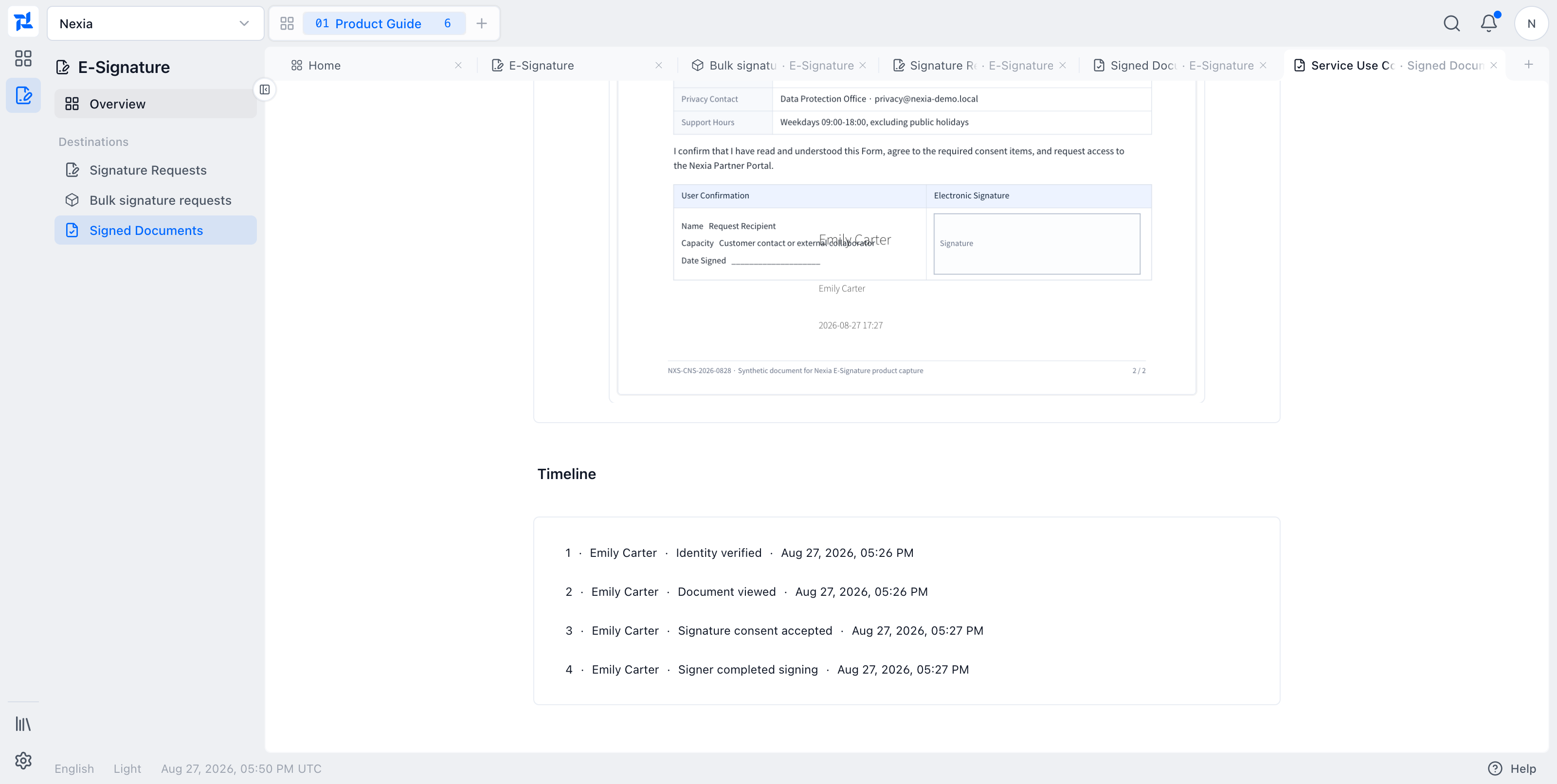
The timeline records identity verification, document viewing, consent, and signer completion in order. Completed documents and evidence are not exposed through a generic attachment surface; the dedicated E-Signature route rechecks tenant, Legal Entity, related-resource, and content authority.
Send independent requests in bulk
A bulk request does not create one shared document for many signers. It creates an independent document and request for each selected recipient group.
- Choose Bulk request on a published form.
- Add recipients directly, or download the Excel workbook, complete one group per row, and upload it.
- Confirm names, emails, verification methods, and the expiration window.
- Resolve excluded rows or rows that need more information.
- Review the independent recipient groups.
- Continue and confirm the send action.
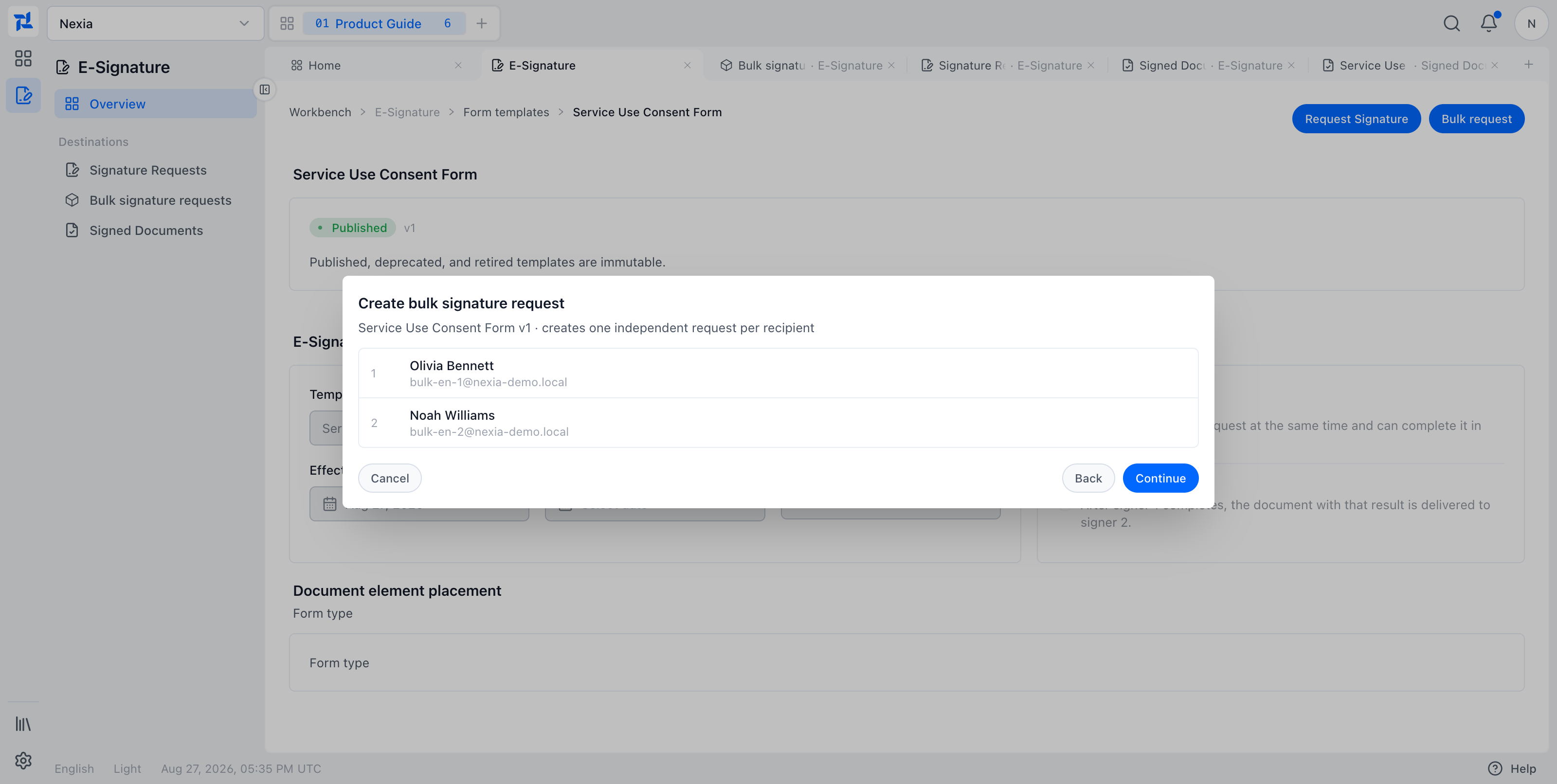
The batch detail updates each row as its document is prepared and its request is created.
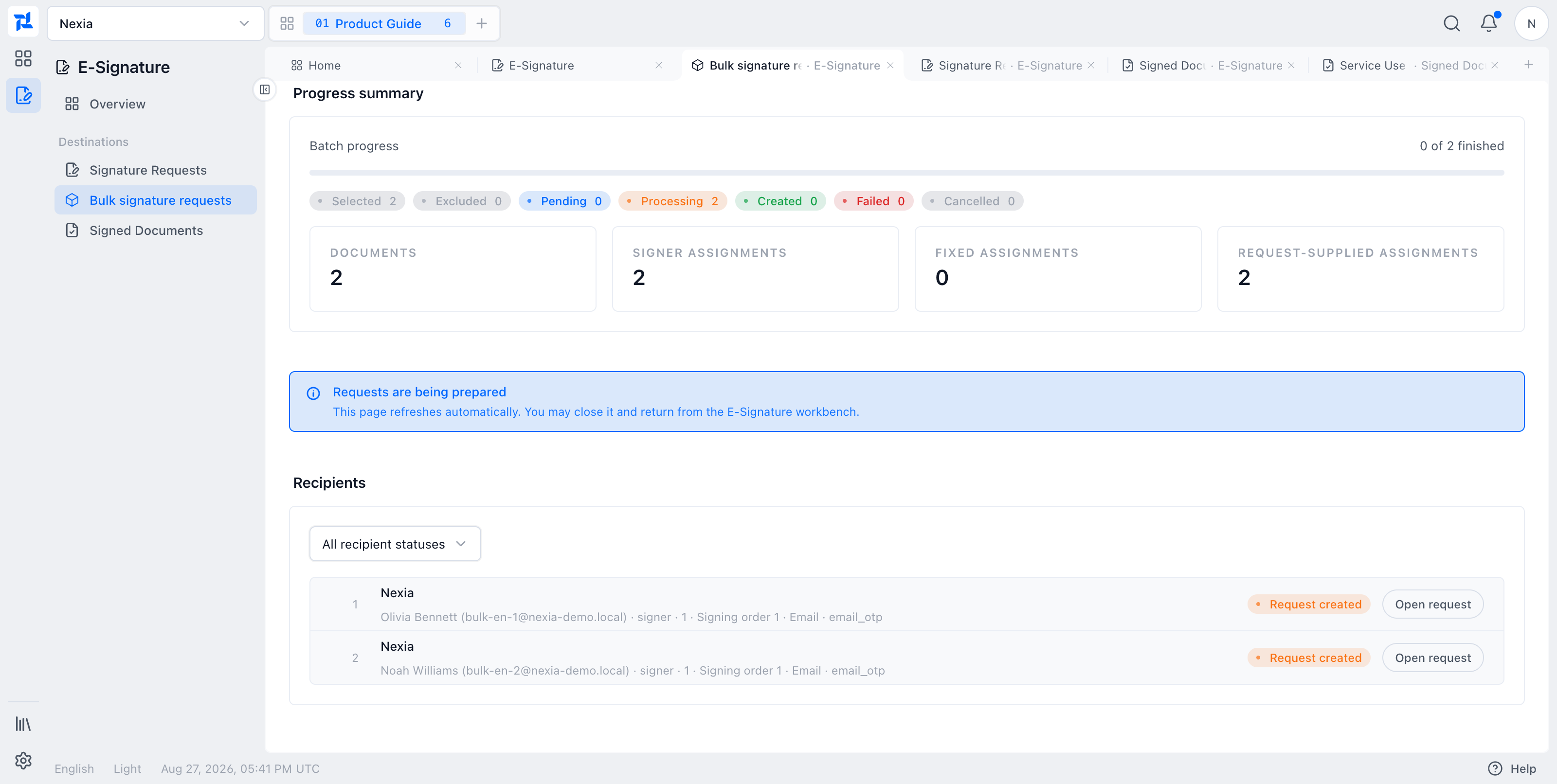
Choose Open request on a Request created row to inspect the individual request. Because rows are processed independently, some may succeed while others fail. The batch finished count increases when individual requests reach terminal outcomes such as completed, declined, expired, or cancelled.
Troubleshooting
- If Request Signature or Bulk request is absent, check the form lifecycle state, selected Legal Entity, and your authority.
- If the exact PDF is still being prepared, wait for the preparation step to finish before sending.
- If resend or cancellation is disabled, the request may be terminal or the participant may not be the current sequential signer.
- If a completed document is visible but cannot be downloaded, verify completed-document access.
- If a recipient cannot use an invitation, confirm that it is the newest link and has not expired.
- If a new signing tab is blocked, allow pop-ups for Nexia or choose Open in this tab from Received Signature Requests.
Learn more
More guides for this capability
Nexia Cloud OS
Send and complete E-Signature requests
Follow an E-Signature request from recipient setup through signing, evidence review, and bulk delivery.