
Reports and dashboards / Reports and dashboards
Build a dashboard with Agent
Turn a business question into a concrete request, review the data and layout of Agent’s dashboard, and save it for reuse.
Start by deciding what decision the dashboard should help you make. Questions such as “How far has this month’s work progressed?” and “Which items need attention first?” give you a clear basis for requesting and reviewing the result.
This guide uses a monthly work overview to explain the workflow. Available sources, fields, and widgets depend on the installed apps and your account’s permissions.
Select a screenshot to open the original image in a new tab. Organizations, names and records in the examples are Demo data; use the corresponding information for your own work.
Before you start
- Sign in to Nexia and confirm that you can use Agent. Agent access and source-data access are separate requirements.
- Choose the Legal Entity and reporting period. If you work across entities, identify the one this dashboard should cover.
- Identify the information you need. A breakdown by assignee needs assignee information; overdue work needs a due date and a way to identify unfinished items.
- Continue an existing conversation when it already contains the relevant context. Use a new conversation for a separate dashboard.
Mentioning restricted data in a prompt does not expand your access. If the necessary source or fields are unavailable, adjust the question to the information you can use.
Open a conversation and write the first request
- Open Conversations in the Agent workspace and start or select the relevant conversation.
- Describe the dashboard’s purpose, entity, period, and desired arrangement.
- Review the dates and organization before sending.
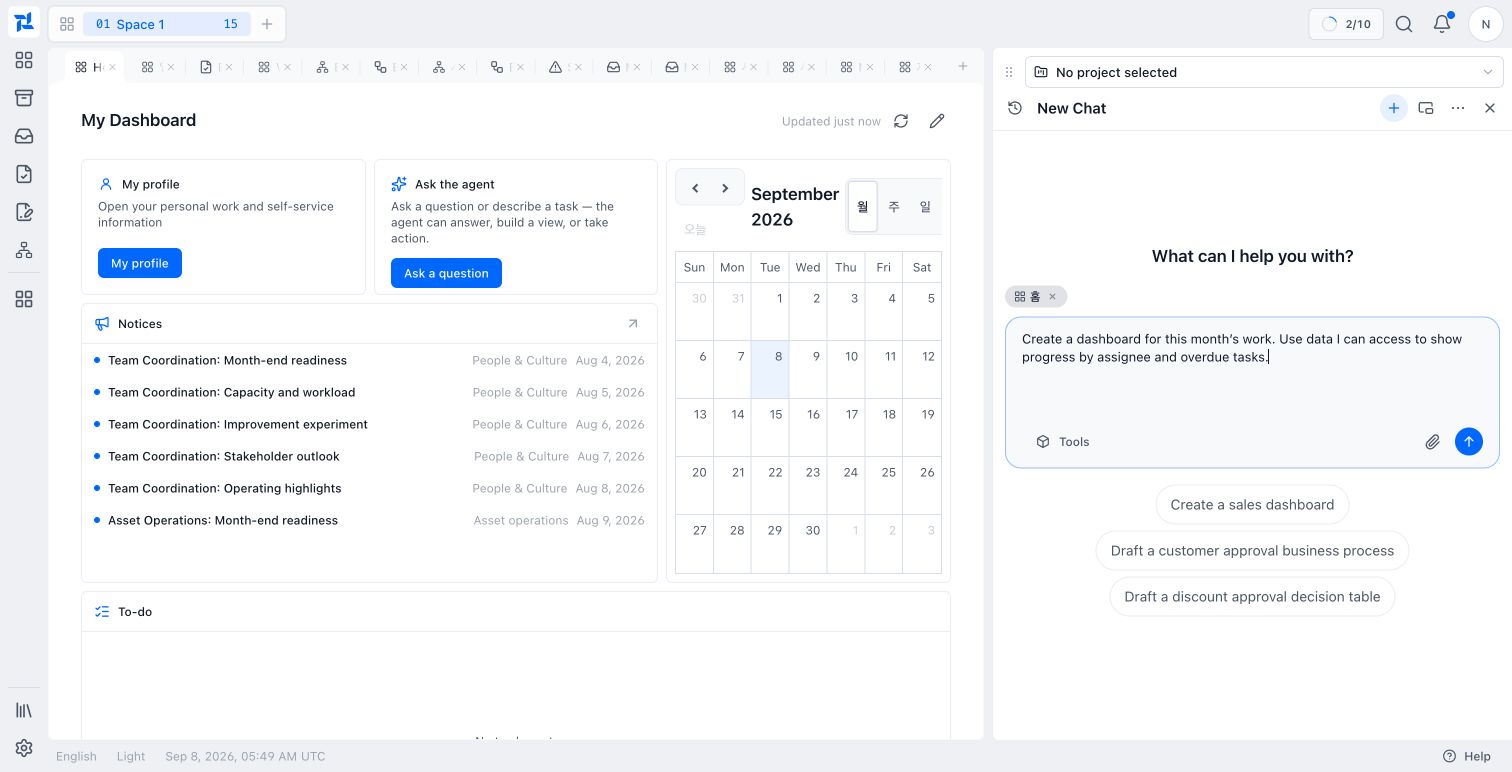
The Agent composer is on the right. The home dashboard already open on the left is not the result of this request. After sending, review the response and any dashboard that opens.
Adapt the entity and dates in this example to your work:
Create a Nexia dashboard for reviewing DEMO-KR’s work in September 2026. Use work sources I can access, and explain which source and date field you use.
Show overall progress first, followed by work by assignee and overdue unfinished items. Include a list that lets me distinguish individual items. Name it “September work overview.”
If a required source or field is unavailable, do not estimate values. Explain what cannot be built and suggest an available alternative.
Be precise about the date criterion. Work created in September, due in September, and completed in September are different populations. For a deadline-focused meeting, add: “Include work with a due date from September 1 through September 30.”
Resolve missing details
If Agent asks about the source or scope, answer in the same conversation. Specify the work you actually need to review rather than leaving the choice open.
| Decision | Example instruction | What to inspect in the result |
|---|---|---|
| Purpose | Find work needing attention at the monthly review | Can you move from the overview to identifiable items? |
| Organization | DEMO-KR | Does each widget cover the intended entity? |
| Period | Work due in September 2026 | Was the due date used rather than creation or completion date? |
| Breakdown | By status and assignee | Does the source provide those fields? |
| Overdue rule | Past its due date and still unfinished | Are completed items excluded? |
| Presentation | Summary and individual work list | Are identifying details, status, and due dates available? |
These are request and review criteria, not a promise that every source supports every condition or chart.
Open the generated dashboard draft
When Agent produces a dashboard result, Nexia opens a separate dashboard Work Tab. Read its title and widgets to confirm that it addresses the requested work. If you return to chat, select that dashboard tab again.
A new dashboard result in the same conversation updates that conversation’s dashboard tab to the latest result. After requesting changes, inspect what changed in the tab, rather than looking for an additional tab.
| What you see | Next action |
|---|---|
| A question about source or period | Supply the missing conditions and continue. |
| Only a description of the proposed layout | Ask for a result that opens as a dashboard. |
| A dashboard tab with a title and widgets | Review its data and layout. |
| An error or unavailable widget | Resolve the cause and scope before continuing. |
If the response only describes a dashboard, try:
Build that arrangement as a dashboard I can open and save in Nexia. Use only currently available widgets and data.
Identify the dashboard tab
Look for Nexia widgets and Save dashboard or Edit layout controls. A view with App / Code, Revision, and In library may be an HTML app artifact. Having “dashboard” in its title does not make it a native dashboard saved under My Dashboards.
If you receive an HTML app or prose, ask: “Build this with Nexia widgets as a dashboard I can save under My Dashboards, instead of an HTML app.” If service errors continue, use direct composition to start with Notices and Calendar.
Review sources and values
Check the source and query conditions before polishing the layout. Compare the source explained in the conversation with the information shown in the widgets, and ask Agent about conditions you cannot establish.
- Confirm the source and entity. Check for a similarly named source or another organization’s work.
- Check the date field. Confirm that a requested due-date range has not become a creation-date range.
- Check aggregation. Distinguish item counts, monetary totals, and grouped results.
- Compare individual items. Open accessible source records and compare several items’ status, assignee, and due date with the dashboard’s interpretation.
- Separate empty results from errors. An unavailable widget or failed query is not evidence of zero work.
If a summary count differs from a list’s row count, first compare their filters and aggregation units. Do not treat values with different scopes as equivalent totals.
Request concrete revisions in the same conversation
Name the widget, the condition to change, and what should stay the same. Correct data conditions first, then refine the arrangement so that each change is easier to assess.
Correct the period and overdue rule
Use the due date rather than the creation date for the reporting period. Include only unfinished items past their due date in the overdue list. Tell me first if the source does not support this condition.
Change the reading order
Put the summary at the top and the assignee breakdown below it. Widen the individual work list so titles and due dates are readable. Keep the sources and filters unchanged.
Review both the requested changes and the settings you asked to preserve. Even after a layout-only request, check that the source and period remain correct before saving.
Refine the layout directly
When direct editing is available, open Edit layout to adjust widget positions and sizes. Use this when you want to arrange the screen yourself.
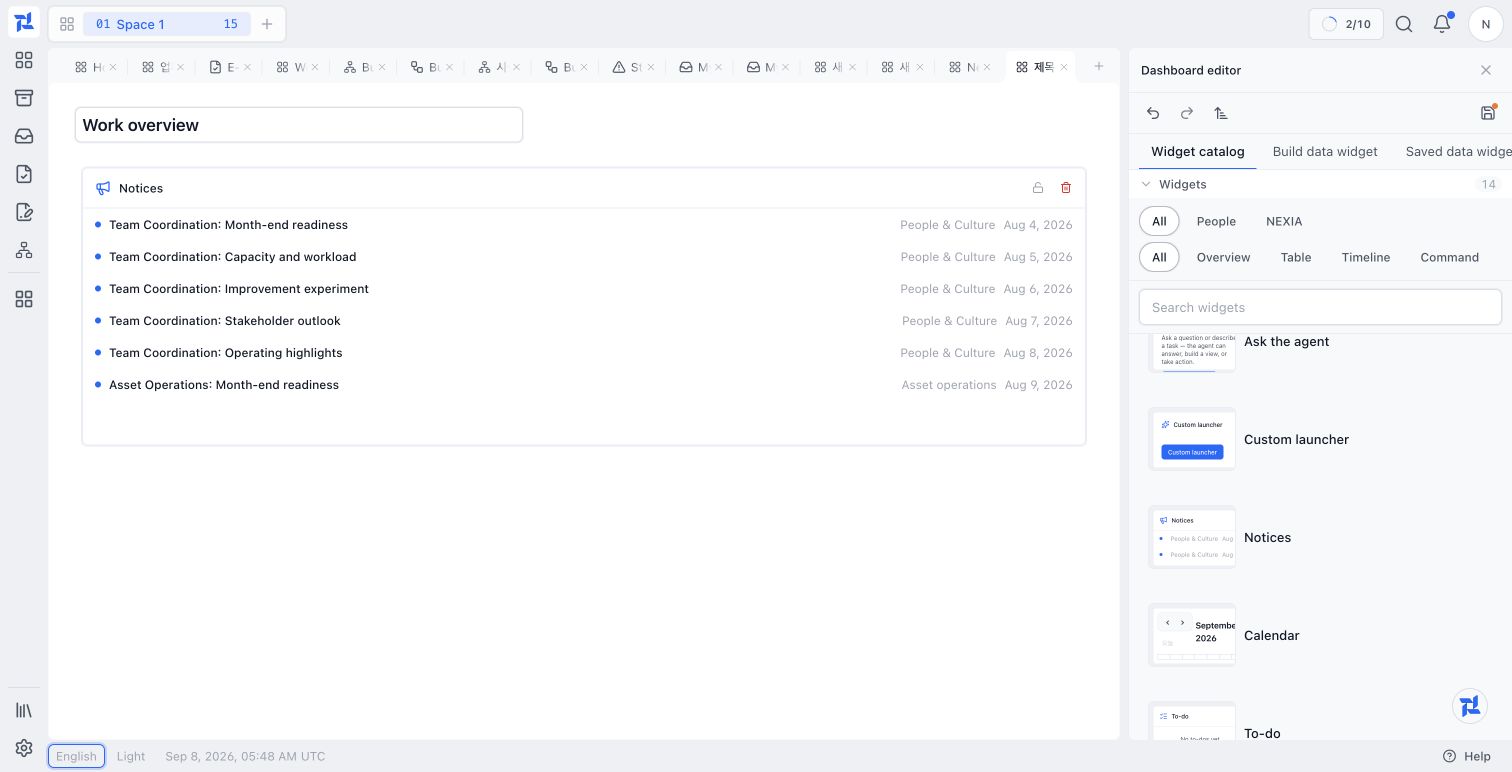
This capture comes from the direct-composition guide. It illustrates the editing controls, not output generated by the monthly-overview request above.
- Put the summary or overview you read first near the top.
- Give item lists enough width for titles and important values.
- Review the arrangement and select Save layout.
For source selection and field configuration, see Compose a dashboard directly.
Save the dashboard
Save the conversation’s result when you want to reuse it. Opening a generated dashboard does not by itself add a persistent entry to My Dashboards.
- Select the dashboard Work Tab you want to keep.
- Confirm its title, sources, period, and widgets match the reviewed result.
- To retain the generated result as it is, use Save dashboard in the dashboard header. If you are editing the layout, use the editor’s Save layout action to save the changed arrangement.
- Wait for success confirmation. The current screen then becomes the saved dashboard.
If saving fails, resolve the reported error and save again. A dashboard that remains visible is not proof that it was saved successfully.
Reopen it from My Dashboards
Open Dashboards in the app launcher and find the saved title in My Dashboards. Select it to confirm that you can use it without reopening the conversation.
The direct-composition guide shows Weekly operations review being saved and reopened. That example demonstrates navigation; it is not the result of the Agent request above. For your generated dashboard, look for the title you actually saved.
Confirm the following after reopening:
- The title distinguishes this dashboard from others, and all required widgets are present.
- Each widget’s source and scope match the reviewed conditions.
- Titles and important values remain readable in the intended order.
- No unavailable-widget or query error remains unresolved.
If the conversation produces another result, do not assume that an already saved dashboard includes it. Identify whether you are viewing the conversation’s latest draft or a saved dashboard, then use the save action provided for the result you want to retain.
If something goes wrong
| Symptom | What to check and do |
|---|---|
| Agent will not open | Check Agent access in the current tenant. |
| Agent service is unavailable | Read the error and check service availability. Do not assume generation completed. Use direct composition if you need a dashboard immediately. |
| There is an answer but no dashboard | Ask for an actual dashboard result; distinguish prose from a screen you can save. |
| A source or field is unavailable | Check the source app and read permission, then adjust conditions to available data. |
| Values differ from expectations | Compare entity, date field, filters, and aggregation with the source. |
| A widget is empty | Check query success and conditions before interpreting the result as zero. |
| The saved item cannot be found | Check the account, tenant, save confirmation, and saved title. |
Learn more
More guides for this capability
Nexia Cloud OS
Build a dashboard with Agent
Follow a monthly work overview from the initial request through review, revisions, saving, and reopening.