
Working with Agent / Agent workspace
Use the Agent workspace
Learn how to start Agent conversations, group related work into projects, and keep reusable results as artifacts.
The Nexia Agent workspace manages Conversations, Projects, and Artifacts as different things. A conversation carries instructions and responses, a project groups work under durable context, and an artifact keeps a result that must outlive its conversation.
Select a screenshot to open the original image in a new tab. Organizations, names and records in the examples are Demo data; use the corresponding information for your own work.
Before you start
- Use an account with Agent access. If the entry point is missing, ask your administrator to check Agent access in the current tenant.
- Start a new conversation when the new work has different context.
- A conversation does not own project artifacts. Save a result as an artifact when it must remain reusable.
Example: prepare a weekly review
Consider a “Weekly operations review” project with separate conversations for organizing material and drafting a report. In the first, identify issues in the supplied material. In the second, specify the audience and length. Keep reusable documents as artifacts so you can open them without searching the conversation history.
Start a new conversation
- Choose Conversations in Agent management, or open
/agent/conversations. - Choose New chat.
- Describe the work, expected result, relevant material, and constraints.
- Review the instruction before sending it. A prompt prepared by another surface is not sent automatically before the user can review it.
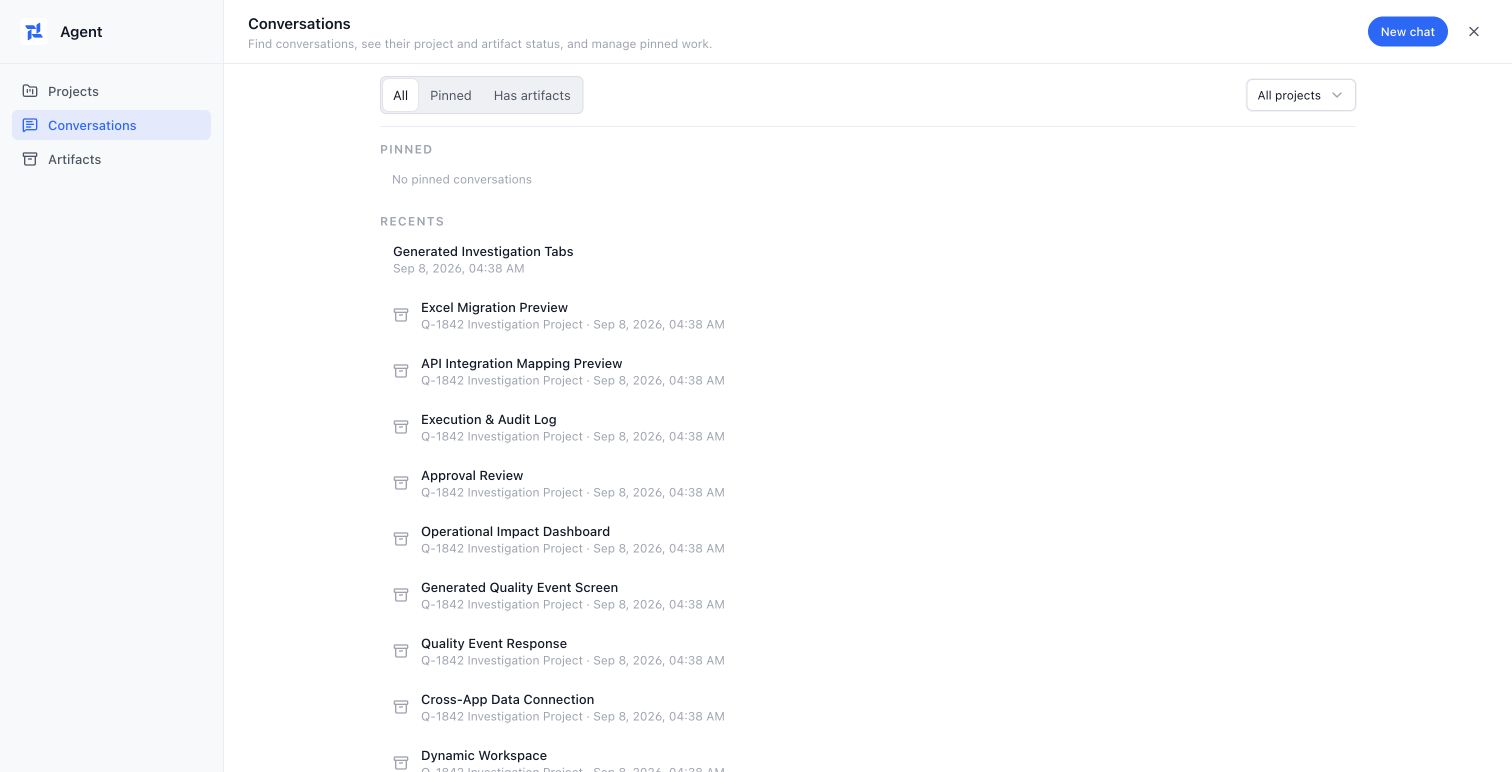
Find the conversation to continue
Choose projects, conversations, or artifacts in the left navigation according to what you need. Use the project filter and the pinned or artifact views to narrow the conversation list. Read the project name beneath a title before continuing; start unrelated work with New conversation at the top right.
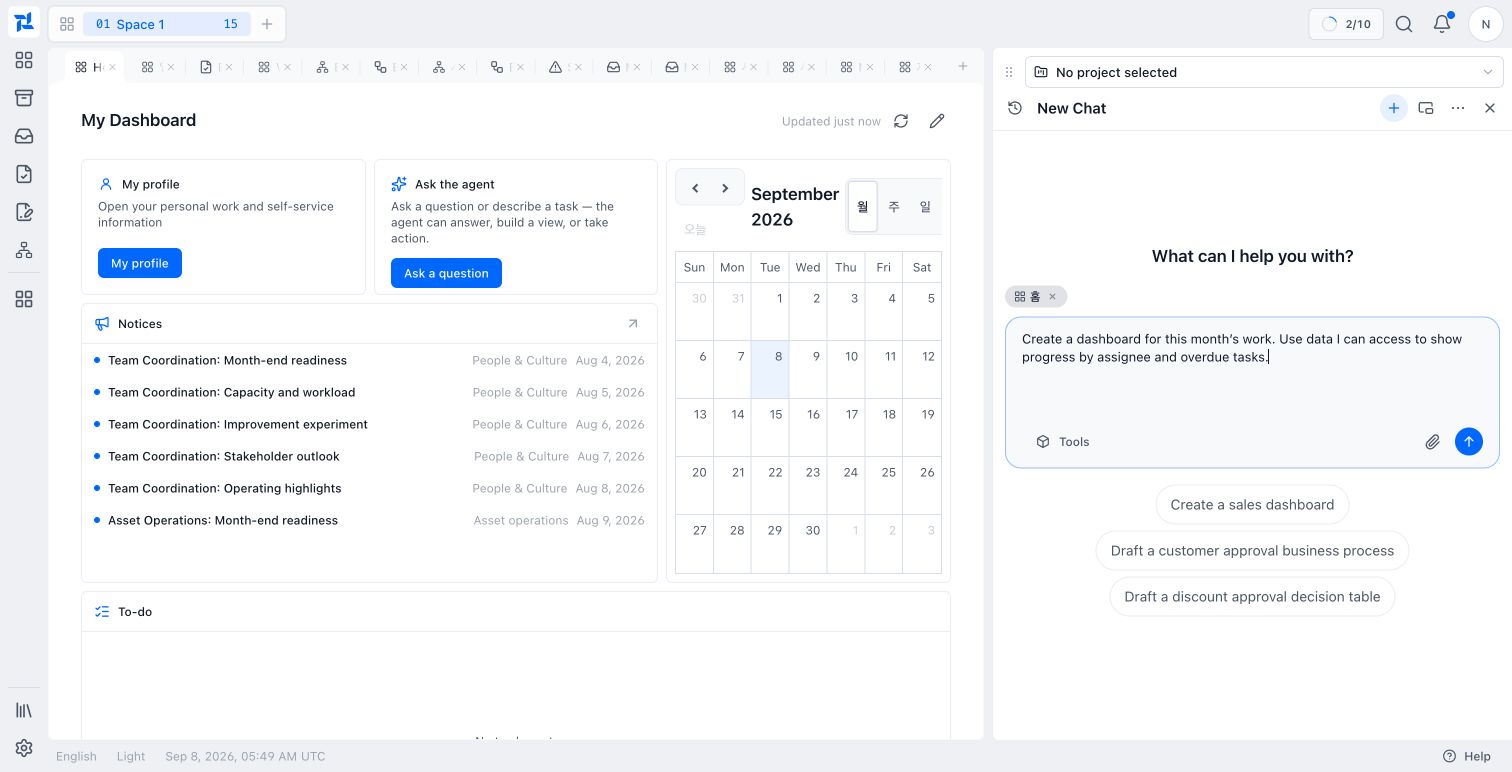
This composer example specifies both the work scope and desired output. It does not show a sent request or a generated result.
Group context into a project
- Open
/agent/projectsand choose New project. - Name work that spans several days or belongs to one team topic.
- Move related conversations into that project from the conversation list.
Continue a conversation in its project
- Open the project to browse its conversations and artifacts together.
- Select the conversation that contains the work you want to resume.
- Read the preceding instructions and results before sending the next request. Keep a different task in its own conversation.
Deleting a project removes the project and its artifacts while retaining its conversations. Treat project cleanup and conversation retention as separate decisions.
Keep a result as an artifact
- Specify a reusable output format, such as “Create a document with the meeting purpose, decisions and follow-up work.”
- Check for a result you can actually open. If the reply is only prose, ask for a document you can reopen outside the conversation.
- Open the result, review its title and content, then choose Save to library when offered.
- Check its library status and find it again in Artifacts.
A service error means generation did not complete. Give your administrator the displayed error and reference ID. If a saved artifact already exists, use the steps below to continue with it.
Reopen and reuse an artifact
- Open
/agent/artifactsand use In progress, Library, Favorites, or By project views to find it. - Open the artifact in its dedicated Work Tab to inspect or edit it.
- Use revision history to preview earlier content or restore it as a new revision.
| Item | Use it when |
|---|---|
| Conversation | Continuing the instructions, tool use, and responses for one task |
| Project | Grouping several conversations and artifacts under durable context |
| Artifact | Keeping a result that must be opened, edited, or reused outside the conversation |
Make the first request specific
| Situation or review point | What to check and do |
|---|---|
| Purpose and audience | “Prepare a report for an operations review meeting.” |
| Material and constraints | “Use the supplied material and identify anything that is unconfirmed.” |
| Expected output | “Create a document with a summary, open questions, and follow-up work.” |
Read a saved artifact and its revision
The following example opens Excel Migration Preview, which was already in the Demo library. It is separate from the document-writing request above and demonstrates how to find the saved result and its version.
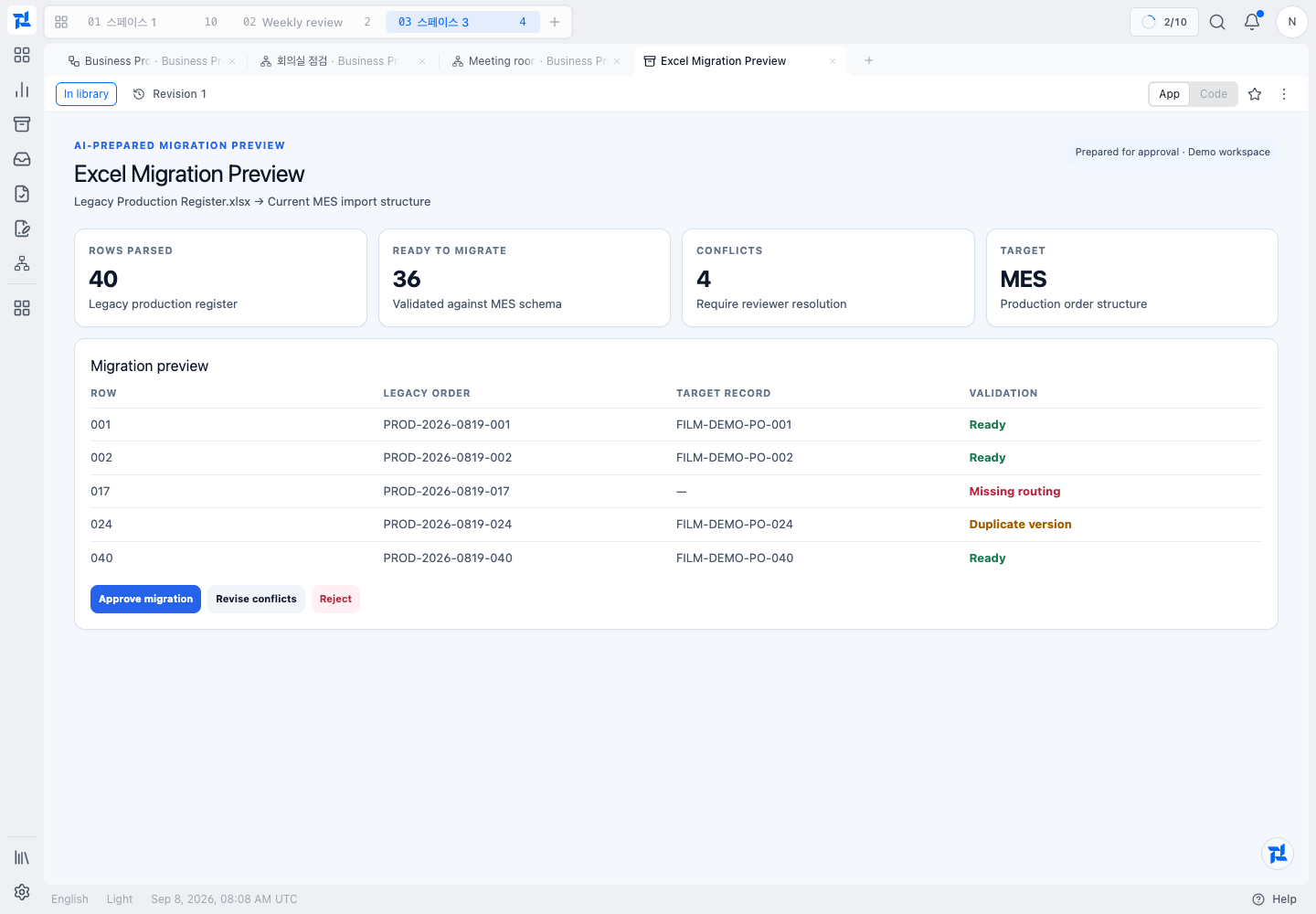
In library is the retention state; Revision 1 identifies the current content. The center contains the Demo HTML app itself. Its buttons and numbers are not evidence that a real migration ran.
- Choose Revision 1 to open Revision history.
- Read the current-version marker and timestamp. Select an earlier version to preview it when one exists.
- Use the offered restore-as-new-revision action if you want to restore older content. This example has only the current version, so there is no earlier content to restore.
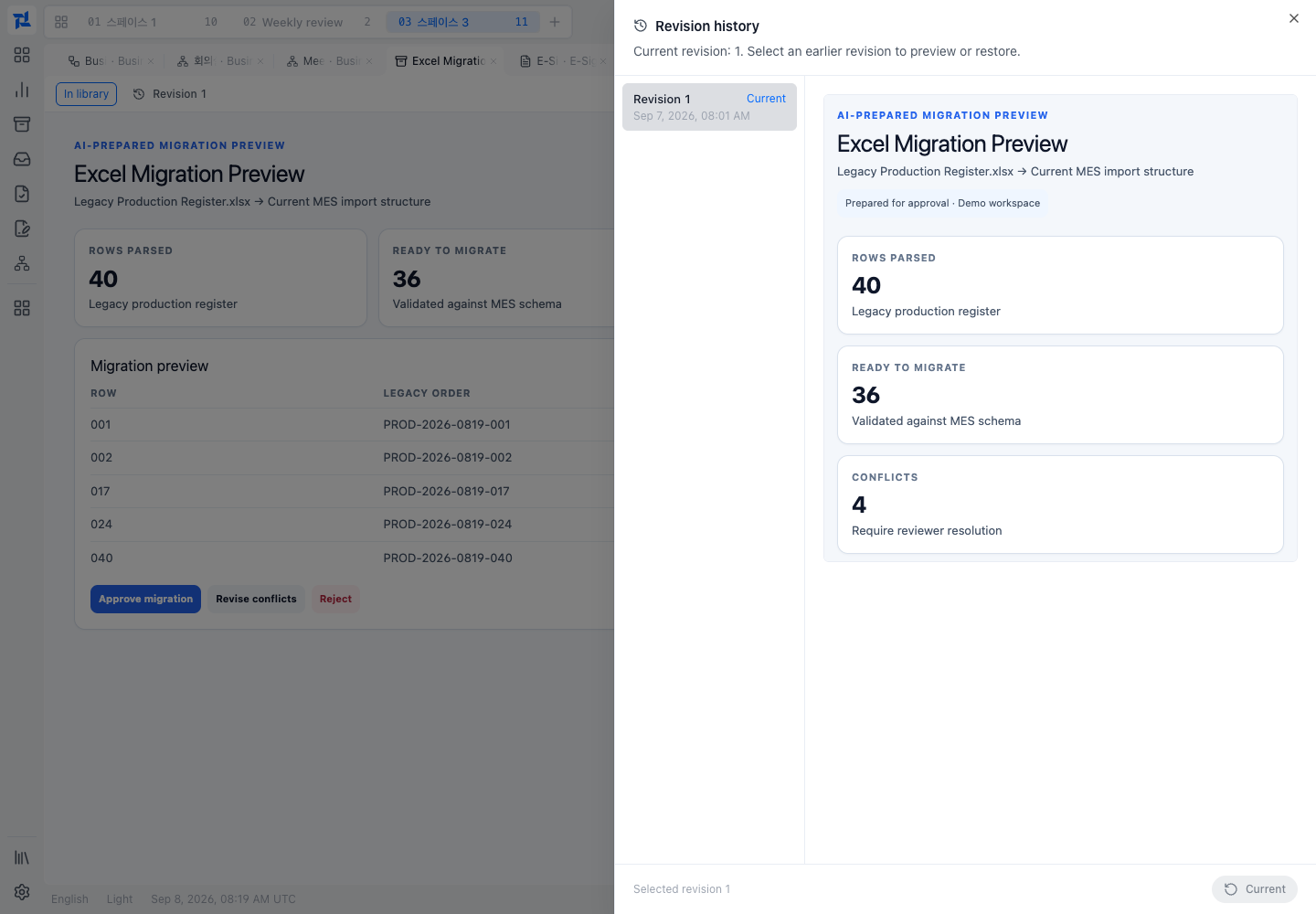
This shows opening history and inspecting the current version, not a completed restoration.
Confirm your workspace
- Check that unrelated instructions and results are not mixed in one conversation.
- For longer-running work, confirm that related conversations belong to the right project.
- Confirm that a reusable result is marked Saved to library.
- For important artifacts, verify project association and revision history.
If something goes wrong
If an Agent destination is unavailable, check Agent access in the current tenant. If a result is missing from the library, confirm that it was saved and check the selected artifact view or project. Reopening a conversation does not automatically turn every response into a saved artifact.
Learn more
Nexia Cloud OS
Use the Agent workspace
Use a separate conversation for each task, group longer-running work into projects, and keep reusable results as artifacts.