
Approval and signature / E-Approval
Write an E-Approval
Learn how to review your work and start a new approval request from the E-Approval Workbench.
The E-Approval Workbench brings together decisions waiting on you, cases you participate in, and the forms you can file. The visible destinations and actions depend on your current organization and permissions.
Select a screenshot to open the original image in a new tab. Organizations, names and records in the examples are Demo data; use the corresponding information for your own work.
Before you start
- Sign in to a Nexia tenant and select the Legal Entity where the work belongs.
- Reading approval cases requires
approval.case.read. - Filing a new approval document requires
approval.document.submit. - Form, route-policy, and operator archive destinations appear only with their separate administration permissions.
If a destination or button is absent, check the current Legal Entity and granted permissions first. A role label or visible screen does not grant decision authority by itself.
Example: submit a request with supporting evidence
When work needs a decision, first choose a form available in the current Legal Entity. Name the decision in the title and explain the reason and supporting evidence in the document. Include the relevant material and request scope so the reviewer does not have to infer the request from its title.
Open the E-Approval Workbench
- Choose E-Approval from the Workbench navigation.
- Use E-Approval work summary to review the cards and work available to your role.
- If you navigate directly, open
/workbench/approvals.
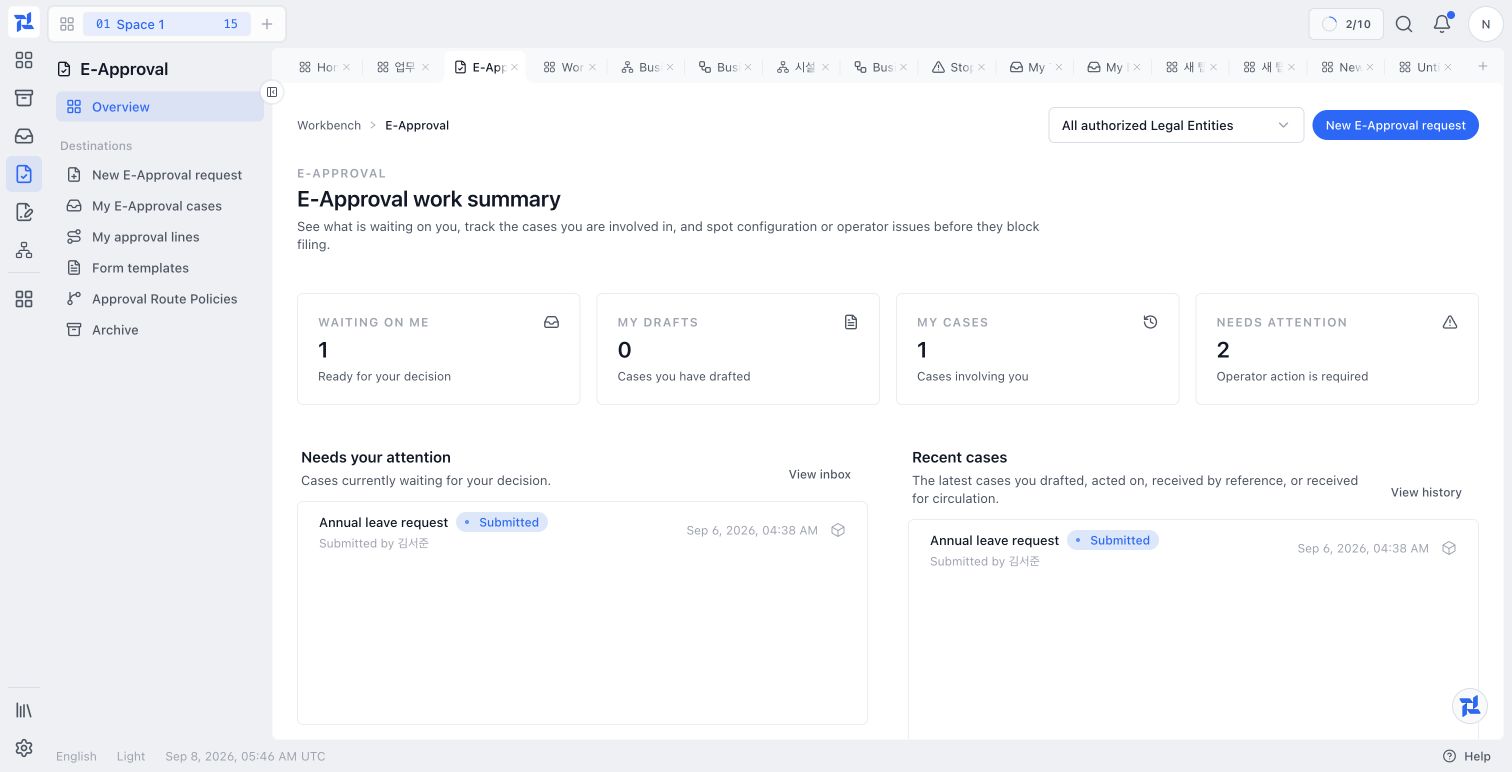
Read the workbench overview
The cards separate waiting decisions, submitted or participated-in cases, and operational checks. The waiting and recent sections below can show the same case in different contexts, so adding every card count does not give a unique total of work. Start a new request from the writing action at the top right.
Review your work first
The work summary shows only the items the current user may access.
| Item | What it shows |
|---|---|
| Waiting on me | Cases currently waiting for your approval or consultation |
| My drafts | Approval requests you drafted or saved for later |
| My cases | Recent cases you drafted, acted on, received by reference, or received for circulation |
| Needs attention | Blocked or configuration states that require an operator |
Choose a case under Needs your attention to open its approval detail. The inbox action opens the unified task inbox, where approval work and Business Process user tasks are composed without merging their underlying records.
Choose an approval form
Choose New E-Approval request in the page header and select the working Legal Entity. In this Demo, choose 회의록 (meeting minutes). Form names are configured by the organization and can remain Korean in an English interface. A business-record request should use its matching business form.
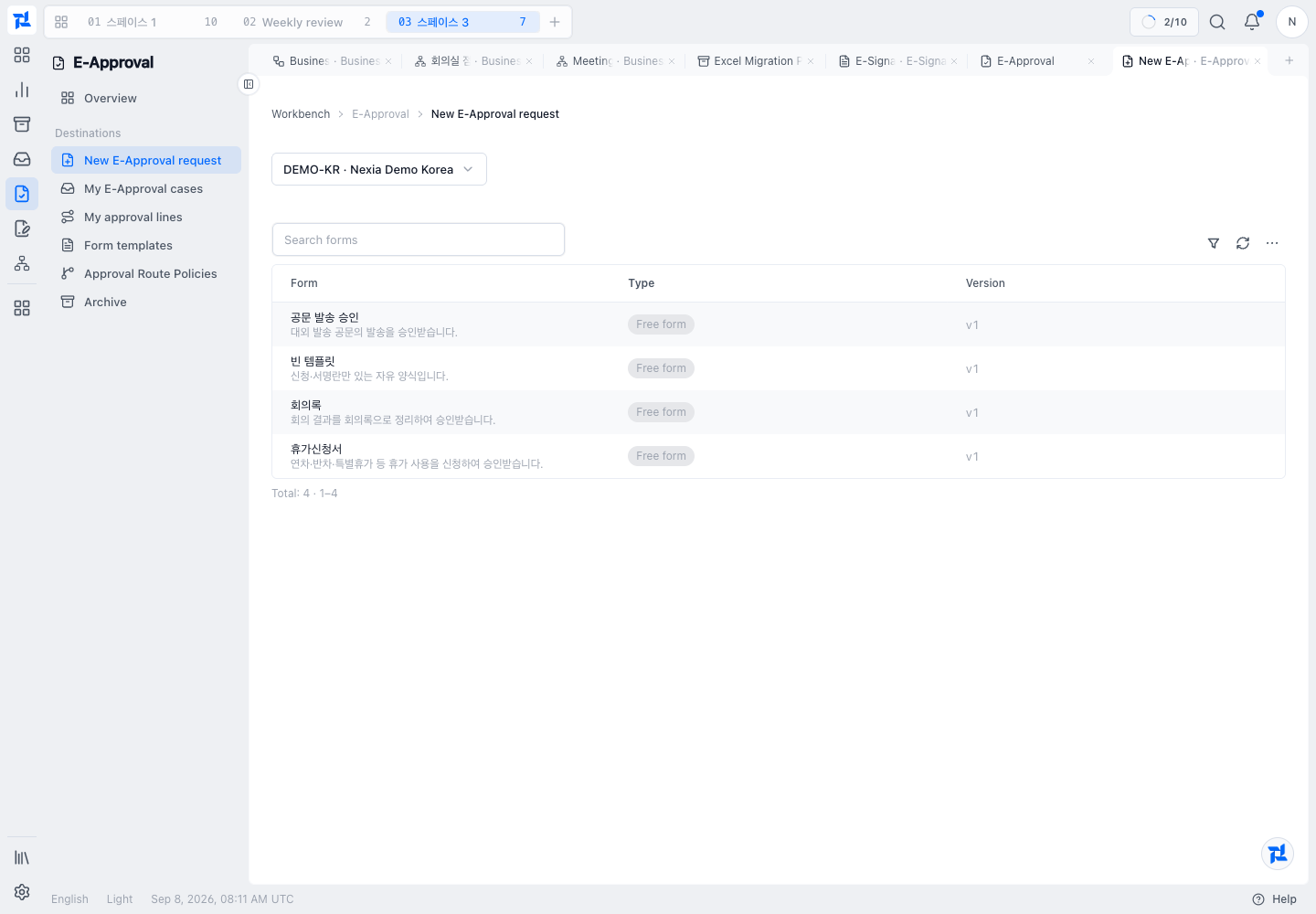
This is the form catalog before creating the example request.
Write the document and review its approval line
Enter Weekly operations review minutes · Guide example as the title. In the document, state the meeting purpose, decision and follow-up owner/date. The example requests approval of an inspection plan; it does not claim the inspection has already happened.
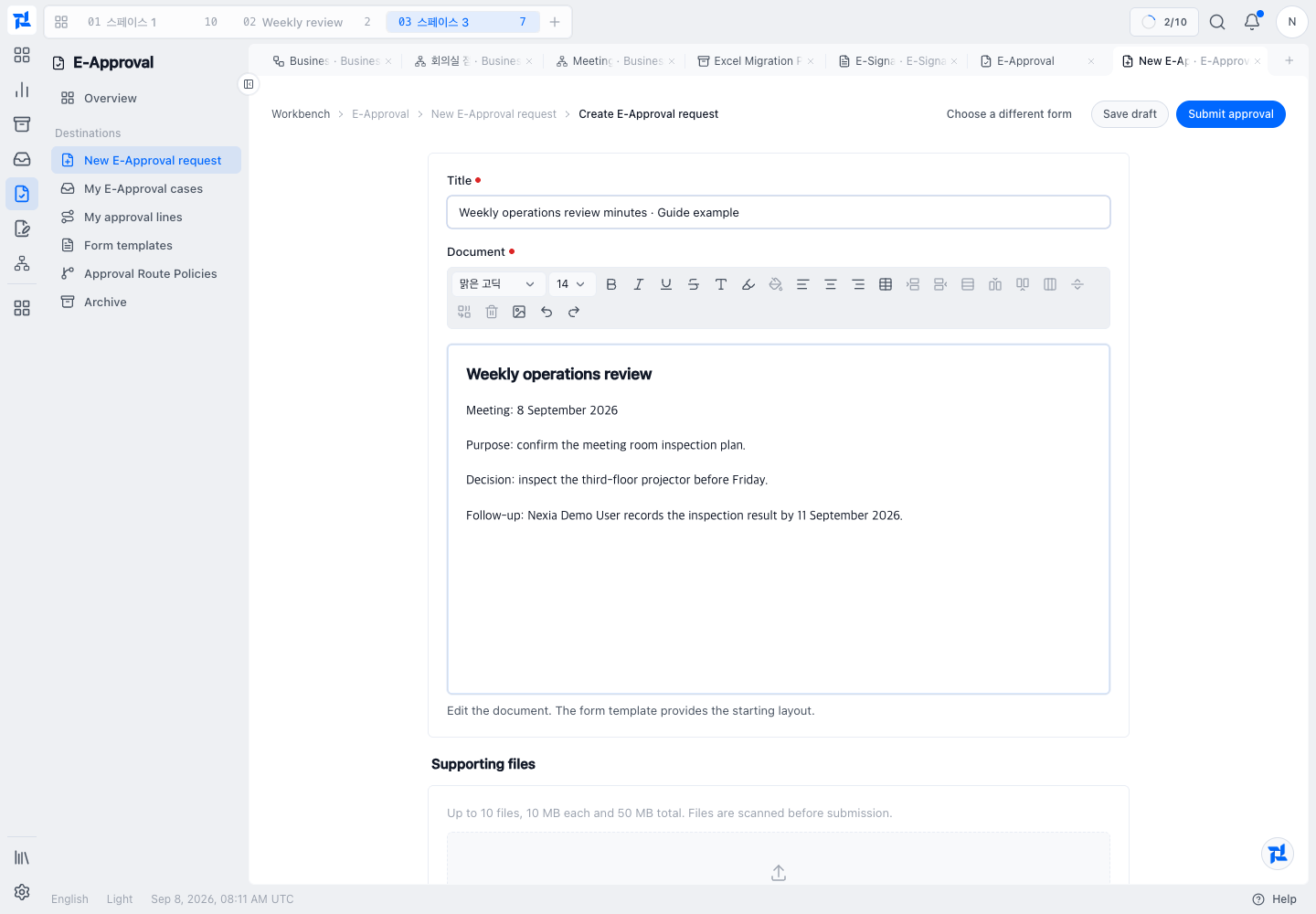
The example specifies an inspection of the third-floor projector by 11 September 2026. Replace those details with the actual decision you need.
Check before submitting
Scroll to Approval line. In this example, Nexia Demo Administrator drafts the request and Nexia Demo User is the approver. Select a different eligible reviewer from the drafter.
Check the organization, required fields, supporting files and responsible reviewer. The route offered depends on the form and policy; some forms do not let the drafter choose reviewers freely. Reference (CC) and Circulation recipients do not replace approvers.
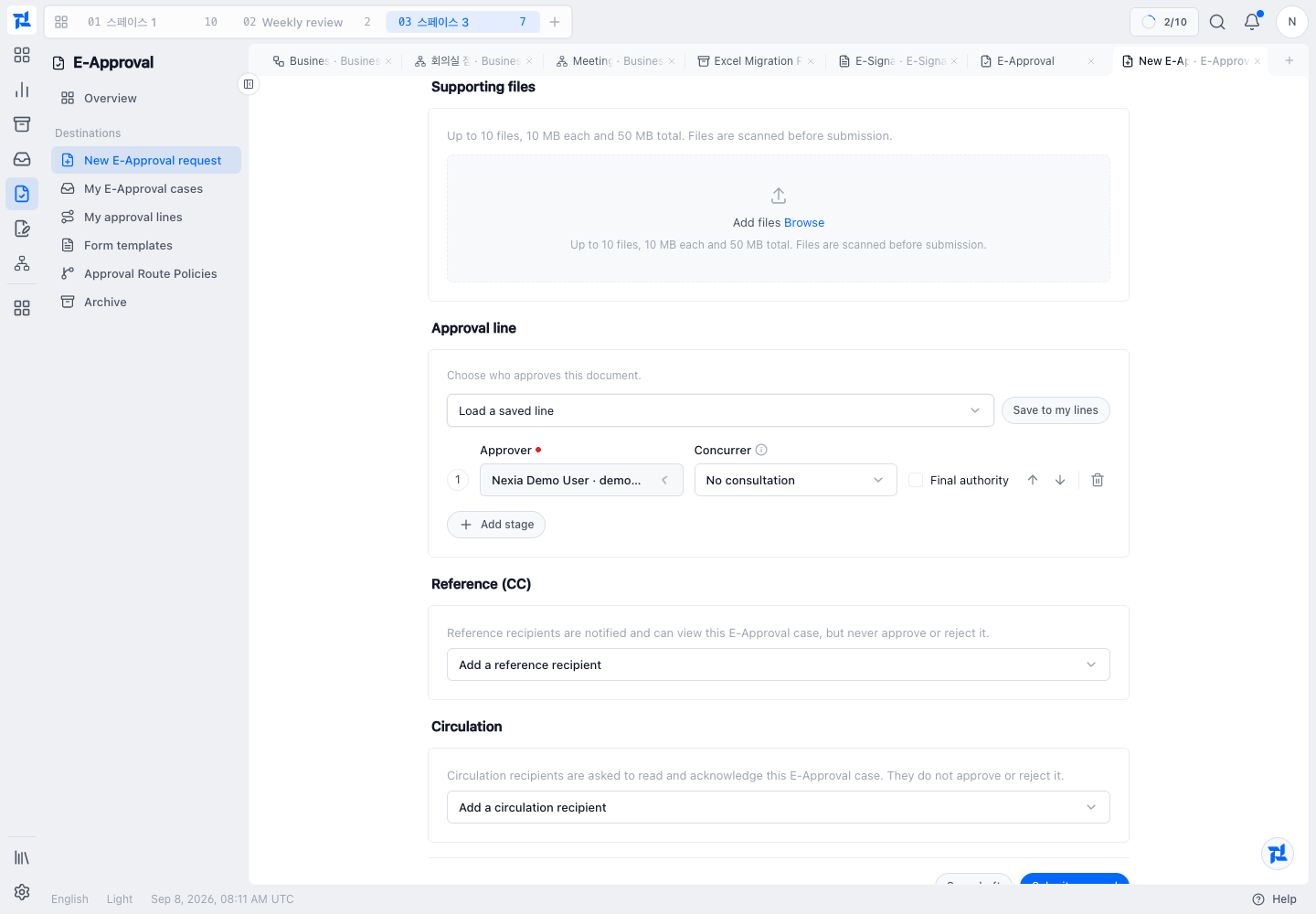
Read each stage before submitting. The chosen reviewer should be able to understand the requested decision from the document.
Submit the E-Approval
Choose Submit approval and wait for the case detail. Check the same title, Submitted status and the reviewer shown in the approval line before leaving. Submission does not mean final approval.
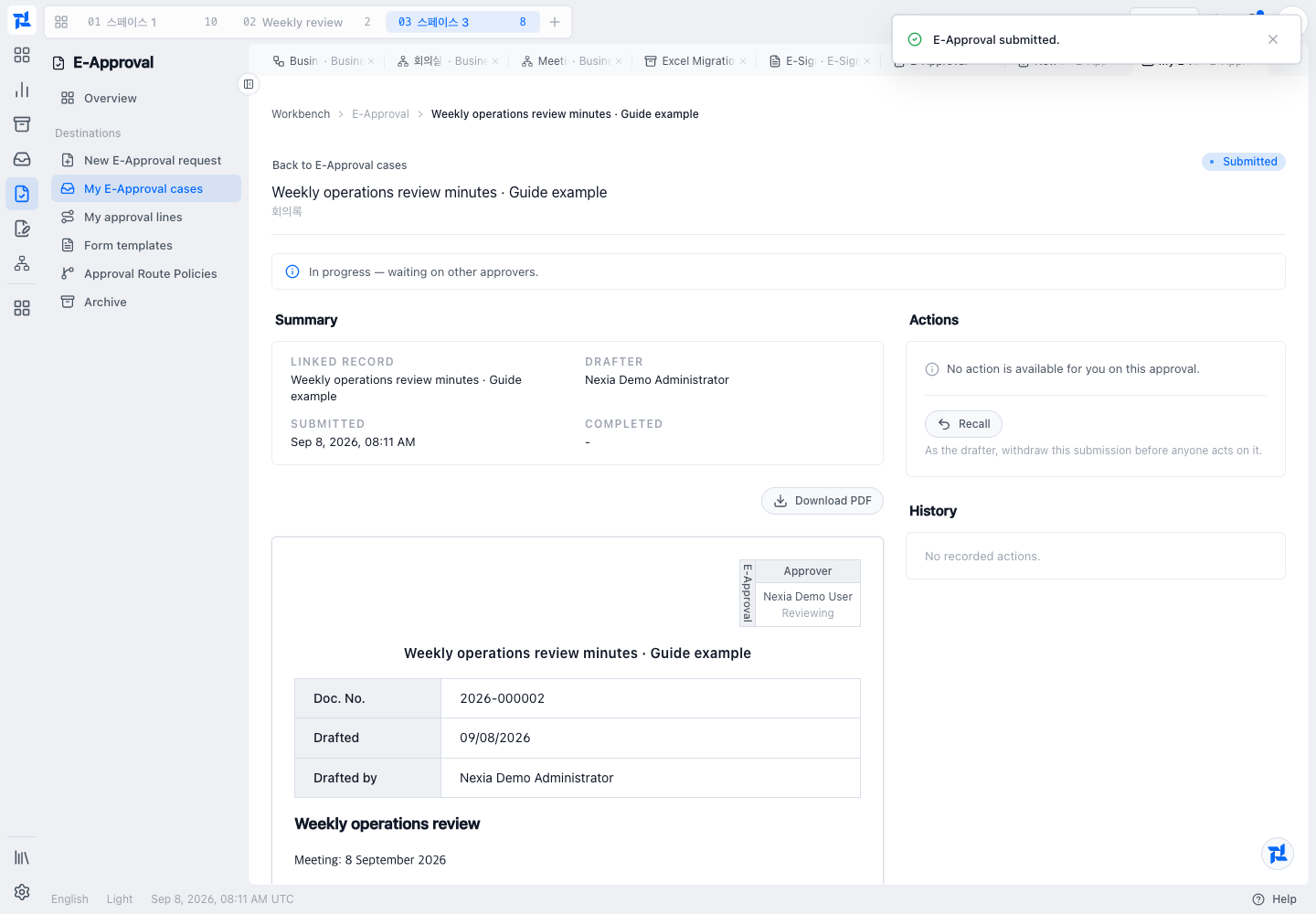
This is the drafter’s view of the same meeting-minutes example. Decision controls appear for the assigned reviewer, not the drafter.
Confirm the result
After submission, use the approval detail to confirm:
- the submitted document and frozen evidence;
- the current approval stage and responsible actors;
- the approve, reject, consult, or object action currently permitted;
- previously recorded actions and comments; and
- the final decision state and linked business result.
The drafter may recall a submitted case only before any decision action has been recorded. The server rechecks the current step and authority before presenting and accepting an action.
If something goes wrong
If no form or action is available, check the selected Legal Entity and the permission required for that destination. Read any validation message and correct the indicated field. After a failed or interrupted submission, inspect the current document state before trying again.
Learn more
- Review an assigned E-Approval
- How E-Approval separates preparation, decision, and execution
- Explore the full product structure
- Log in to Nexia
Review the document before submission
Check the document preview, approval line, reference and circulation recipients before confirming submission. A supporting file can be previewed only after its scan has completed successfully; an expired, changed or inaccessible file must be corrected before use. Submission may be processed in the background: returning to the inbox confirms receipt, so check the submission result before assuming that a case has started. If rejected, review the displayed reason and correct the request before retrying.
Import historical approvals
In Data Center, add existing document lists and EML originals, or start with EML files alone. ZIP archives of EML files are analyzed in the background. Before applying the import, review document details, drafter mappings, inclusion and duplicate results, and reanalyze items when needed. Uploaded or analyzed files are not yet imported. Check system.data.import and approval.case_oversight.read for the target legal entity, resolve displayed errors, and confirm the final result.
More guides for this capability
Nexia Cloud OS
Write an E-Approval
See requests waiting on you, recent cases, filing readiness, and the next actions available to your approval role in one Workbench.