
Business processes / Business Process
Complete an assigned task
Find an assigned Business Process task, check its target and required input, and complete a permitted outcome.
The unified task inbox shows E-Approval work and Business Process user tasks assigned to you. They share a list, but their underlying approval cases and process task records remain separate.
Select a screenshot to open the original image in a new tab. Organizations, names and records in the examples are Demo data; use the corresponding information for your own work.
Before you start
- Sign in to Nexia and select the Legal Entity where the work belongs.
- You need approval read access to see E-Approval work and process-task read access to see assigned Business Process work.
- Approval, consultation, process completion, and reassignment require their separate action authority and a compatible current state.
If a task is missing, check the current Legal Entity and read permission first. A visible task still shows an action only when you may perform it at the current step.
Example: distinguish tasks with similar titles
When several review tasks have similar titles, start with their source and target record. An approval asks for a decision on a document; a process user task may require input or an outcome for one step. Open the detail and read the context even when the names in the list look familiar.
Open the unified inbox
- Choose My Tasks in the App Launcher.
- If navigating directly, open
/workbench/tasks. - Open Filter and choose Pending in the scope filter to see work that currently needs your action.
- Switch to History to find work you previously handled.
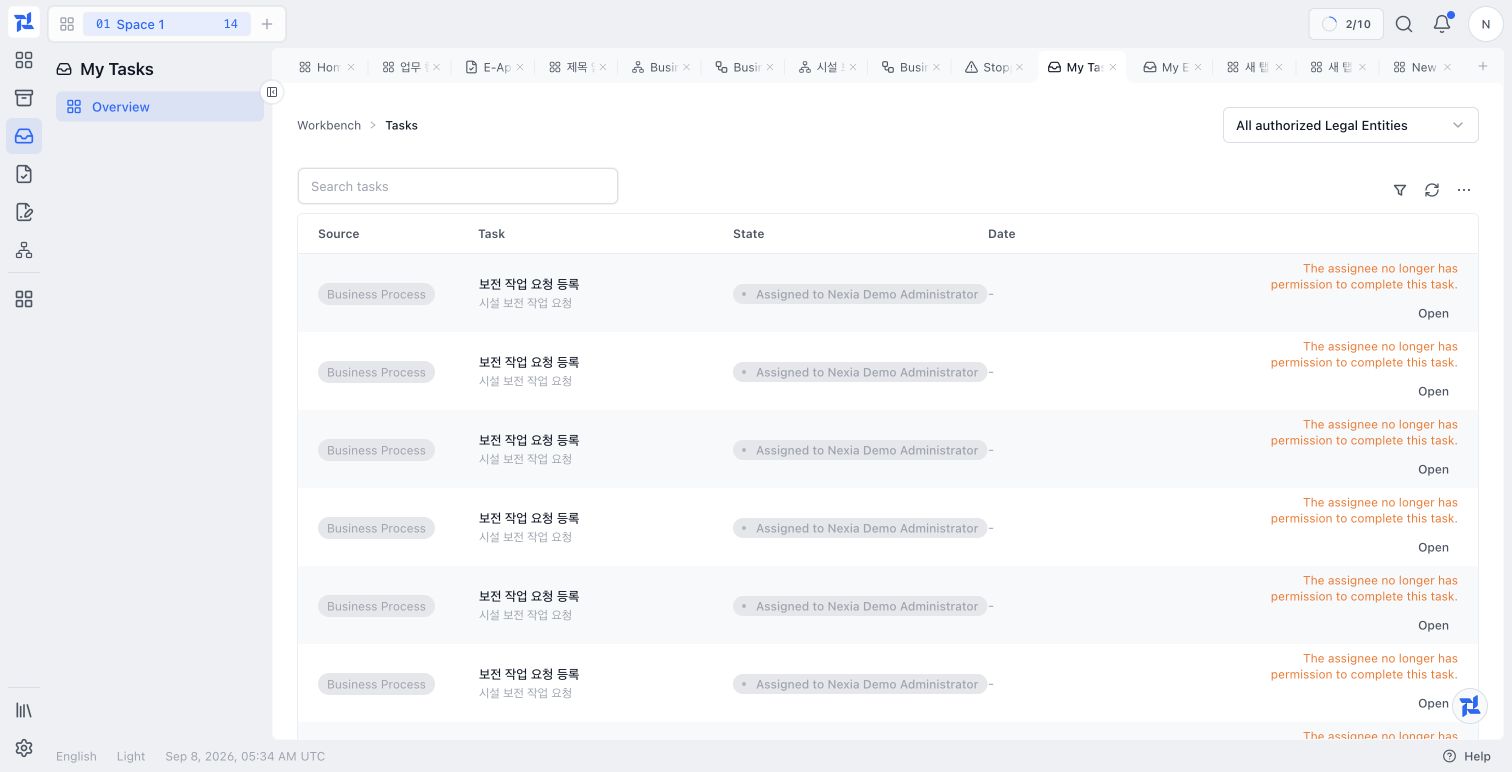
My Tasks in the isolated demo. Assigned work shows a warning and an Open action when completion permission is no longer available.
Read the source and warning in the list
Read the source, task and target, and assignment from left to right. Several tasks have similar names in this example, so do not choose solely by title. Rows with a handling-permission warning are not examples of successful completion. Opening the context does not replace the assignment and authority required to act.
Find the work you need
- Enter a title, target, or identifier in Search tasks.
- When you may see both kinds of work, use the Source filter to narrow the list.
- Read State to distinguish work awaiting you from work already handled.
- Use the date and target record to distinguish similarly named tasks.
| Source | Action that begins here |
|---|---|
| E-Approval | Open the task title, then verify evidence, route, and the decisions allowed on the approval detail. |
| Business Process | Open the task, verify its target and inputs, then submit an allowed outcome or completion action. |
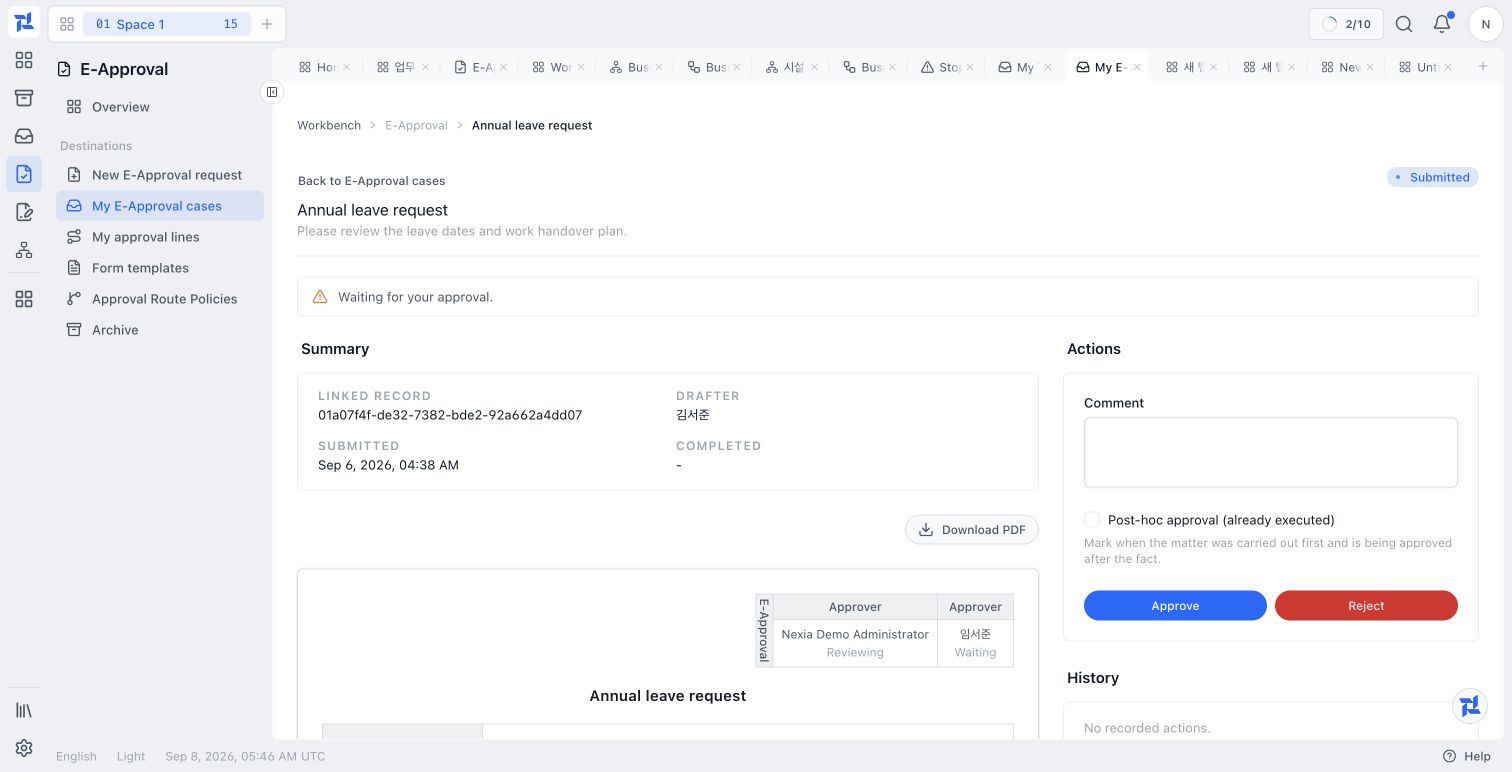
This is the detail for an approval source. It is separate from a process task’s input form or completion outcome.
Check the source and target record
Open the task and confirm which business process and target record it belongs to. Read the instructions in that context before choosing an outcome. The unified inbox can also contain approval work; use the approval detail to make an approval decision.
Check required input and allowed outcomes
Review the task form and any declared outcomes. Read access does not itself grant completion or reassignment authority. Use the actions currently offered for your assignment.
Prepare the inputs and check your assignment
For Meeting room inspection in the process design guide, an Equipment field could contain Third-floor meeting room projector, and Inspection note could contain Display and connection cable checked. Enter what you actually observed; field labels are not the answers.
| Current screen | Next action |
|---|---|
| Assigned to you, with input and completion controls | Fill required fields and follow the completion steps below. |
| Unassigned, with a claim action | Confirm this is your work, claim it and check the new assignment before entering results. |
| Assigned to another person | Ask the responsible operator about reassignment rather than submitting as that person. |
| Handling-permission warning | Give the operator the task title, Legal Entity, assignee and warning. If permission is confirmed but the warning remains, also report the occurrence time. |
The existing inbox capture shows a handling-permission warning. These example inputs explain the expected form values; they do not establish that a completion control appeared or the task succeeded.
Complete a Business Process task
- Select a task whose source is Business Process.
- Verify the target record, process context, and task instructions.
- Complete required fields when the task provides a form.
- Choose the appropriate outcome when the task declares allowed outcomes.
- Choose Complete and wait for the success confirmation.
Some tasks must be claimed or reassigned before completion. The surface shows only the current assignment state and backend-authorized actions. If another actor completes the task first, reload its current state before deciding what to do next.
Choose the next action from the task state
| Situation or review point | What to check and do |
|---|---|
| Visible task without a completion action | Check assignment and handling authority; read access alone does not allow completion. |
| Required fields or outcome choices | Read the task instructions and supply the required values before submitting. |
| Another person has already acted | Read the current state and history before attempting another submission. |
Confirm completion
- Confirm that the item no longer appears under Pending.
- Open History to verify its source, outcome, and handled time.
- For Business Process work, confirm that the linked instance advanced.
- For E-Approval work, open the approval detail to verify your action and the current case state.
If something goes wrong
Check the Legal Entity and process-task read permission if the task is missing. If completion is unavailable, review its assignment and state. If another person completed it first, reload and check History before retrying. A completed user task may advance to another waiting stage rather than finish the whole process.
Learn more
More guides for this capability
Nexia Cloud OS
Complete an assigned task
Find process work in the unified inbox, review its source and assignment, and complete the required input or outcome.