
Workspace and navigation / Cloud OS workspace
Organize and resume your workspace
Find screens, arrange Work Tabs into Spaces, and return to your saved working context.
Select a screenshot to open the original image in a new tab. Organizations, names and records in the examples are Demo data; use the corresponding information for your own work.
Before you start
Sign in to the tenant where you work. A Work Tab holds an open work screen; a Space groups tabs and their layout around a working context. Neither changes your access to apps, records, or Legal Entities.
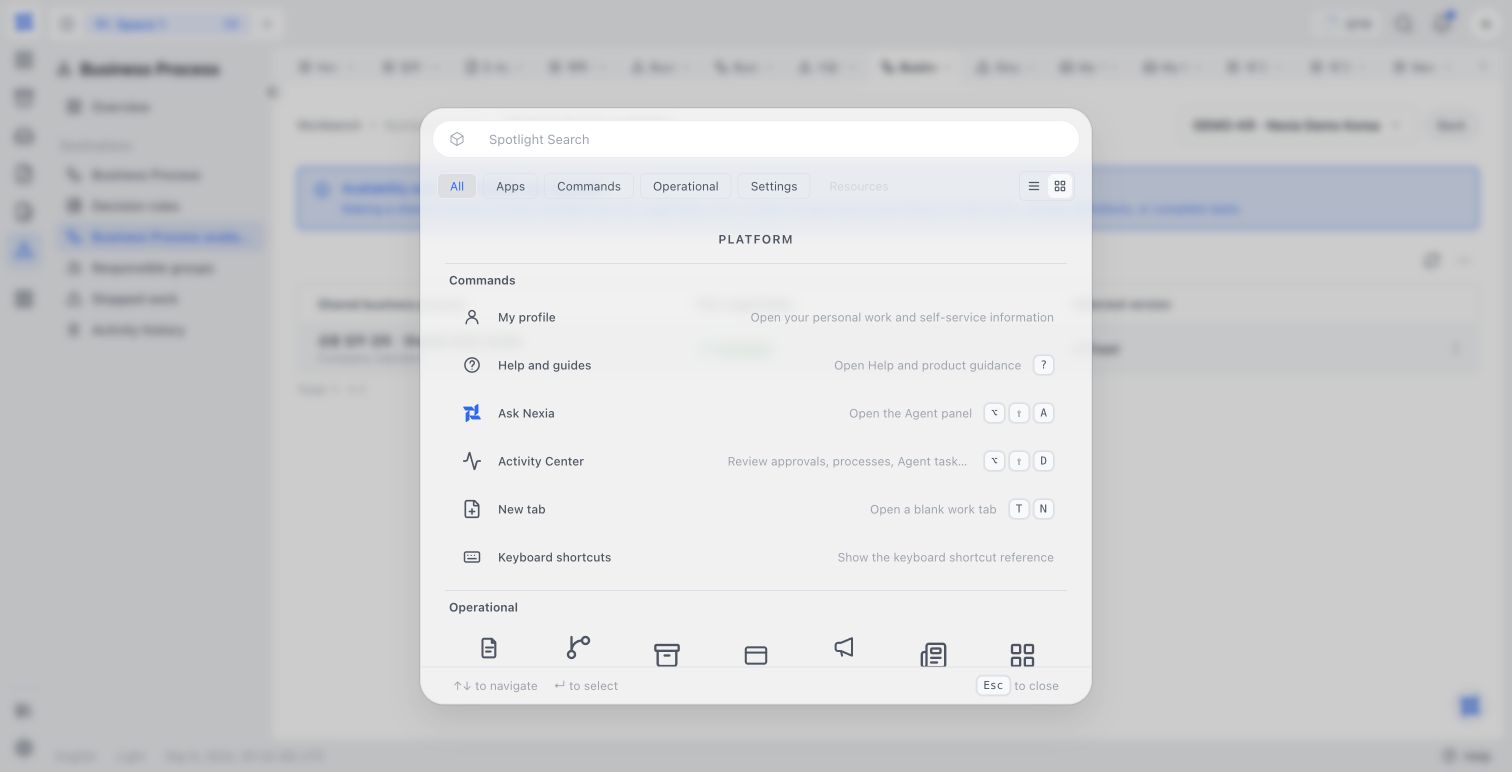
Read the search screen
Use the categories below the search field to distinguish apps from commands. Decide whether you need a work screen or a shell action such as opening a new tab. The background shows the work that was open before search; after choosing a result, check that the destination is the one you intended.
Example: a weekly operations review Space
If you review a dashboard and pending approvals every week, keep those screens in a “Weekly operations review” Space. Use the dashboard tab to read the situation and the approval tab to make the decision. Returning to the same arrangement saves you from finding each screen again.
Find a work screen
Open App Launcher to find installed apps available to you. Use search or the Command Palette to find a destination or shell command. Choose an available result; missing access is not granted by search.
Open work in a Work Tab
Open a destination in the current tab when you want to replace that view. Use the new-Work-Tab action where offered to keep the current screen beside the new work. Opening another tab does not save unfinished form input.
Separate contexts with Spaces
- Choose the + button (New Space) beside the Space names at the top. A Space with a blank work tab opens.
- Right-click the new Space name and choose Rename Space.
- Enter Weekly review and press Enter.
- Open the screens needed for that work. Switch contexts by selecting another Space name at the top.
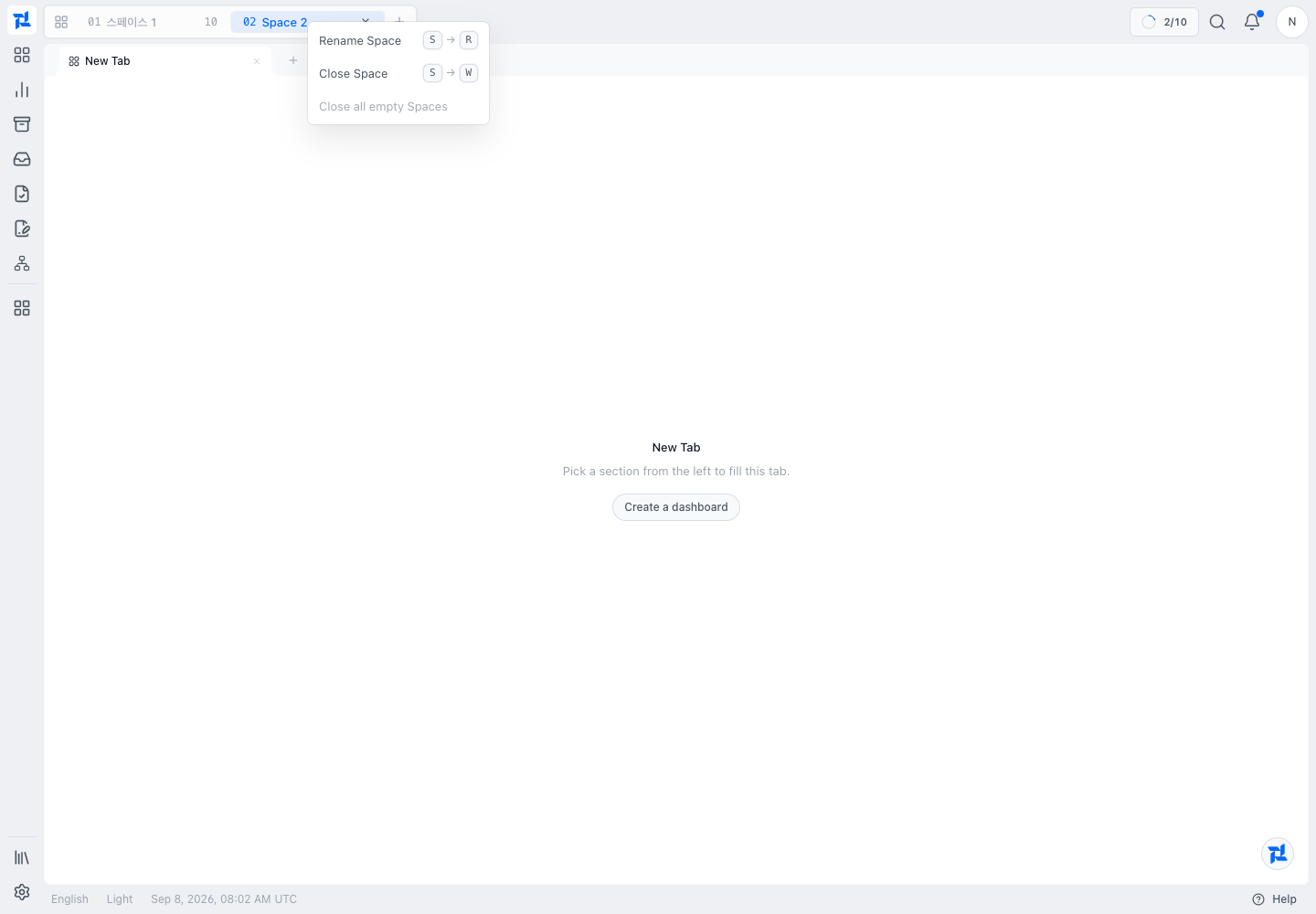
The Space menu belongs to the top strip. Work Tabs have their own separate menu underneath.
Organize Work Tabs
Drag tabs to reorder them. Right-click a Work Tab title to pin it, add it to a group or open it in another Space. Name a group so you recognize it when collapsed. Resolve any unsaved-change prompt before closing a tab.
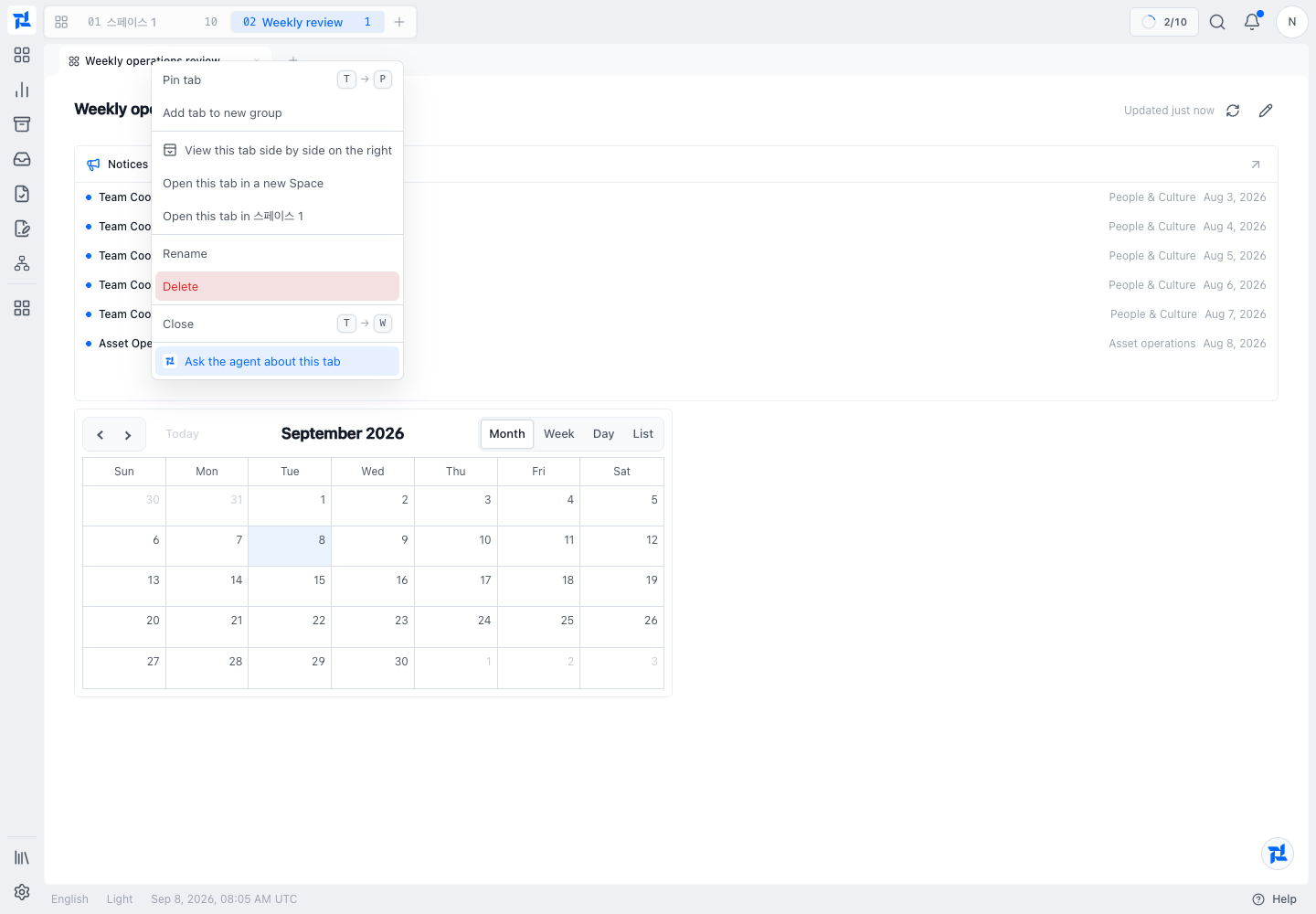
This menu includes pinning, grouping, side-by-side view and opening in another Space.
Use split layouts
- Right-click the Work Tab title you want to keep visible.
- Choose View this tab side by side on the right.
- Select the desired pane and open the other work screen. Drag the boundary to adjust the widths.
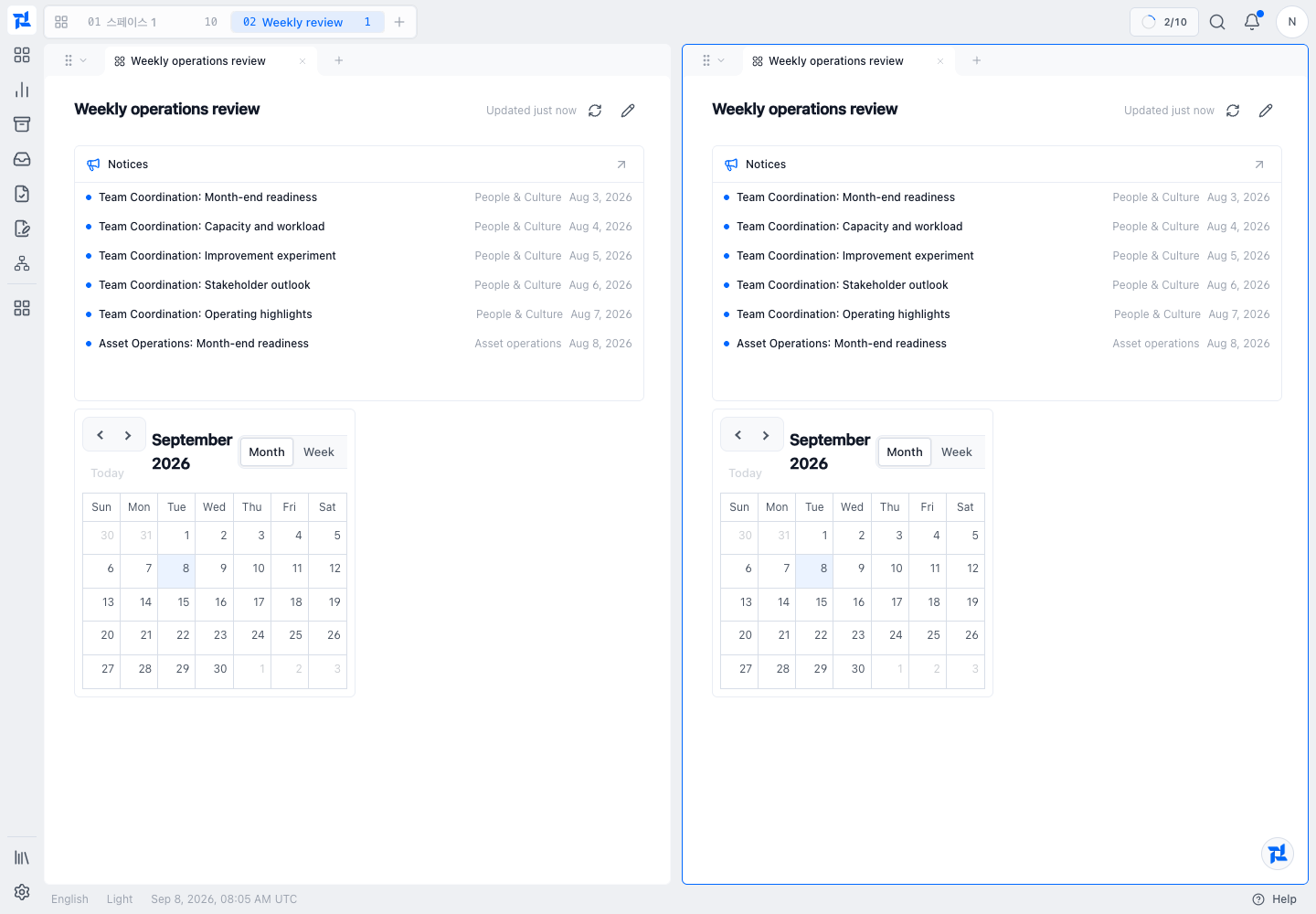
The same dashboard initially appears on both sides. Select another work screen in the right pane to use the left as a reference. Split availability varies by screen and layout.
Resume on another device or at the next sign-in
Save business changes in each screen before leaving. Nexia stores the Space session for the signed-in user, including tabs and layout, and restores the available context on return. Use the same account and tenant. A restored tab is not a backup of unsaved form fields or a guarantee that an old record remains accessible.
Choose how to arrange your tabs
| Situation or review point | What to check and do |
|---|---|
| Keep a reference screen visible | Open another Work Tab and use a split where supported. |
| Unrelated work is crowding the strip | Move a separate working context into its own Space. |
| Resume at the next sign-in | Arrange the tabs, then save the actual forms as well. |
Confirm completion
Switch away from your Space and return. Confirm its name, useful tabs, group labels, and layout. Reopen the work and check saved business changes separately.
If something goes wrong
If a restored screen cannot open, check current app availability and record access. If a split or tab action is absent, use a supported screen and layout. If the session did not restore, check that you signed in to the same tenant and let its context finish loading.
Learn more
Nexia Cloud OS
Organize and resume your workspace
Find screens, arrange Work Tabs into Spaces, and return to your saved working context.